What is Image Compression and Why is it Essential for Web Development?
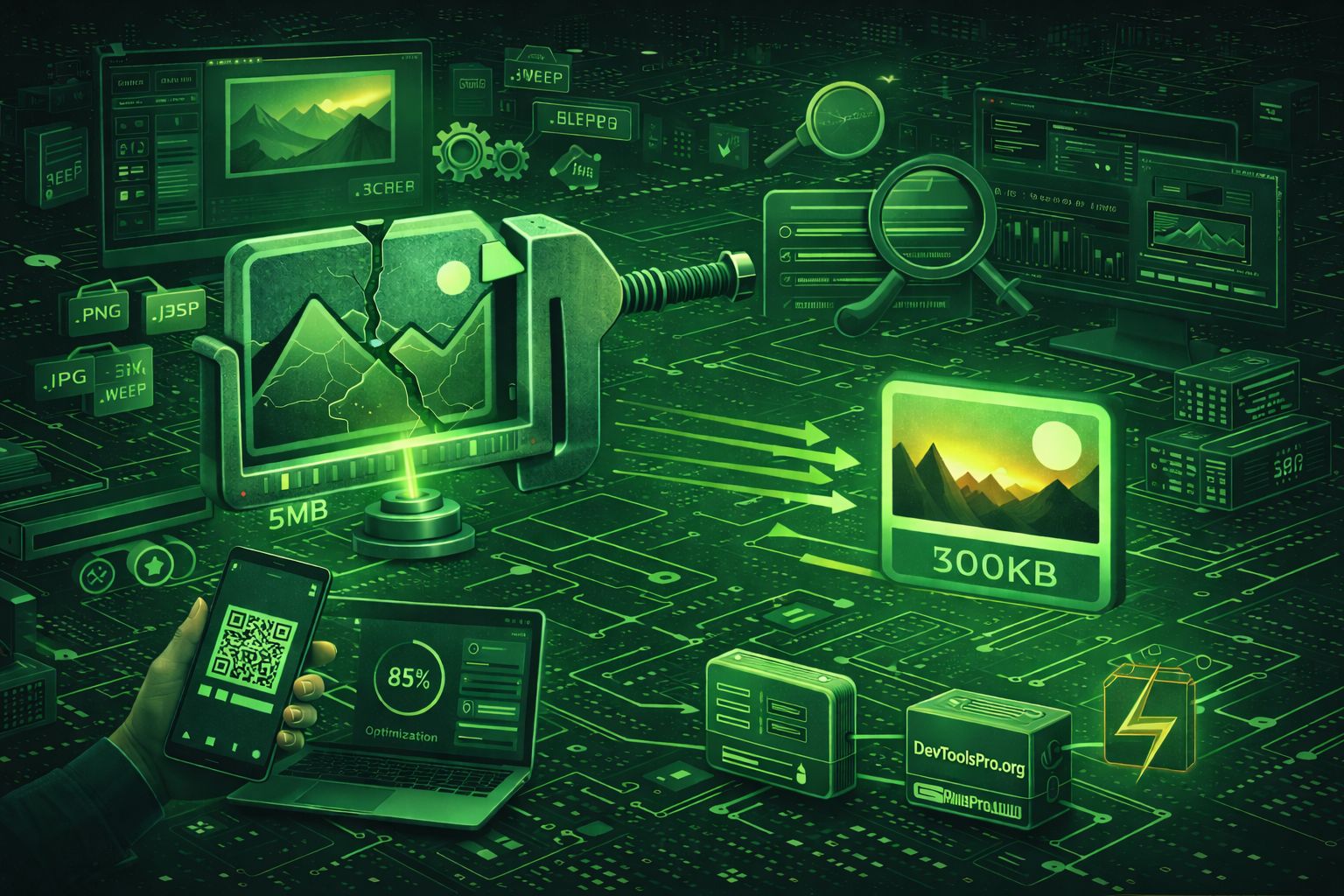
Image compression is the process of reducing the file size of digital images while maintaining acceptable visual quality. In web development, image compression is essential for creating fast-loading, user-friendly websites that rank well in search engines and provide excellent user experiences across all devices.
Images are often the largest assets on web pages, accounting for 50-90% of total page weight. Uncompressed images can dramatically slow down page load times, increase bandwidth costs, and frustrate users, especially those on mobile devices or slow connections. Effective image compression addresses these issues by reducing file sizes without significantly impacting visual quality.
For developers and web designers, understanding image compression is crucial because:
Modern image compression tools, like the Image Compressor & Resizer by DevToolsPro.org, make it easy to optimize images using the Canvas API directly in your browser, ensuring privacy and convenience.
Understanding Image Compression: Lossy vs Lossless Compression
Image compression algorithms fall into two main categories: lossy and lossless. Understanding the difference helps you choose the right compression method for your specific use case.
Lossy Compression
Lossy compression reduces file size by permanently removing some image data. The compression algorithm discards information that the human eye is less likely to notice, resulting in smaller files but some quality loss. The amount of quality loss depends on the compression level — higher compression means smaller files but more quality loss.
Best for: Photographs, complex images with many colors, and images where small quality loss is acceptable. Formats like JPEG and WebP use lossy compression.
Advantages: Significantly smaller file sizes, excellent for web use, supports millions of colors, ideal for photos.
Disadvantages: Some quality loss, not suitable for images requiring exact pixel-perfect reproduction, compression artifacts may be visible at high compression levels.
Lossless Compression
Lossless compression reduces file size without losing any image data. The compressed image can be decompressed to exactly match the original. Lossless algorithms work by finding patterns and redundancies in the image data and encoding them more efficiently.
Best for: Graphics with sharp edges, text, logos, images with transparency, and images where quality must be preserved exactly. Formats like PNG and GIF support lossless compression.
Advantages: No quality loss, perfect for graphics and text, supports transparency (PNG), exact pixel reproduction.
Disadvantages: Larger file sizes than lossy compression, less effective for photographs, may not achieve desired file size reduction.
Choosing the Right Compression Method
The choice between lossy and lossless compression depends on your image type and requirements:
- Photographs: Use lossy compression (JPEG or WebP) with quality settings between 70-85%
- Graphics with Text: Use lossless compression (PNG) to preserve sharp edges and readability
- Logos and Icons: Use lossless compression (PNG) to maintain exact colors and shapes
- Complex Images: Use lossy compression (JPEG or WebP) for better file size reduction
- Images with Transparency: Use PNG (lossless) or WebP (lossy or lossless) depending on quality requirements
The Image Compressor by DevToolsPro.org supports both lossy and lossless compression, allowing you to choose the best method for your images.
Image Formats Explained: JPEG, PNG, WebP, and More
Different image formats serve different purposes. Understanding format characteristics helps you choose the right format for optimal compression and quality.
JPEG (Joint Photographic Experts Group)
JPEG is the most widely used format for photographs and complex images. It uses lossy compression and supports millions of colors, making it ideal for photos but not suitable for images with sharp edges or transparency.
Best for: Photographs, complex images with many colors, images without transparency requirements.
Compression: Adjustable quality (typically 60-90% for web use), excellent compression ratios for photos.
Limitations: No transparency support, not ideal for graphics with text or sharp edges, compression artifacts visible at low quality settings.
PNG (Portable Network Graphics)
PNG uses lossless compression and supports transparency, making it perfect for graphics, logos, and images requiring exact quality preservation. PNG files are typically larger than JPEG but maintain perfect quality.
Best for: Graphics with text, logos, icons, images requiring transparency, images with few colors.
Compression: Lossless, supports transparency (alpha channel), excellent for graphics with sharp edges.
Limitations: Larger file sizes than JPEG, less effective compression for photographs, not ideal for complex images with many colors.
WebP
WebP is a modern image format developed by Google that offers superior compression compared to JPEG and PNG. It supports both lossy and lossless compression, transparency, and animation, making it a versatile choice for web images.
Best for: Modern web applications, images requiring both quality and small file sizes, progressive enhancement.
Compression: 25-35% better compression than JPEG, supports lossy and lossless modes, supports transparency and animation.
Limitations: Limited browser support in older browsers (though support is now widespread), requires fallback formats for compatibility.
GIF (Graphics Interchange Format)
GIF uses lossless compression but is limited to 256 colors, making it suitable for simple graphics and animations. GIF files are typically larger than modern formats for static images.
Best for: Simple animations, graphics with few colors, legacy compatibility.
Limitations: Limited to 256 colors, larger file sizes than modern formats, not suitable for photographs.
AVIF (AV1 Image File Format)
AVIF is an emerging format offering even better compression than WebP. It's based on the AV1 video codec and provides excellent compression ratios, though browser support is still growing.
Best for: Future-proof web applications, maximum compression requirements, progressive enhancement.
Compress Images Instantly with DevToolsPro.org Image Compressor
The Image Compressor & Resizer by DevToolsPro.org provides a fast, secure, and privacy-focused way to compress and resize images directly in your browser. Whether you're optimizing images for a website, reducing file sizes for email, or preparing images for social media, this tool makes the process effortless.
Key Features:
The tool uses high-quality image rendering algorithms to ensure compressed images maintain visual quality while achieving significant file size reduction. Drag-and-drop support makes it easy to upload images, and instant processing provides immediate feedback.
Try the free image compressor now and experience fast, secure image optimization without compromising your privacy. Explore other developer tools like the Color Picker and Box Shadow Generator to enhance your web development workflow.
Image Compression Best Practices for Web Developers
Following best practices ensures optimal image compression results and improved website performance. Here are essential guidelines for web developers:
1. Choose the Right Format
Select image formats based on content type:
- Photographs: Use JPEG with 70-85% quality for optimal balance
- Graphics with Text: Use PNG to preserve sharp edges and readability
- Simple Graphics: Use PNG or SVG for logos and icons
- Modern Web: Use WebP with JPEG/PNG fallbacks for maximum compression
2. Resize Before Compressing
Always resize images to their display dimensions before compression. Serving images larger than needed wastes bandwidth and slows page loads. Use responsive images with srcset to serve appropriately sized images for different screen sizes.
3. Optimize Quality Settings
Find the sweet spot between file size and quality:
- High-priority images: 80-90% quality for hero images and important visuals
- Standard images: 70-80% quality for most web images
- Thumbnails: 60-70% quality for small preview images
- Background images: 50-70% quality for large background images
4. Use Responsive Images
Implement responsive images using <picture> and srcset to serve appropriately sized images for different devices and screen densities:
<picture>
  <source srcset="image-large.webp" media="(min-width: 1200px)" type="image/webp">
  <source srcset="image-medium.webp" media="(min-width: 768px)" type="image/webp">
  <source srcset="image-small.webp" type="image/webp">
  <img src="image-small.jpg" alt="Description">
</picture>
5. Implement Lazy Loading
Use lazy loading to defer loading images until they're needed, improving initial page load times:
<img src="image.jpg" alt="Description" loading="lazy">6. Leverage CDNs and Caching
Use content delivery networks (CDNs) to serve images from locations closer to users, and implement proper caching headers to reduce server load and improve performance.
7. Monitor Performance
Regularly monitor image performance using tools like Google PageSpeed Insights, Lighthouse, and WebPageTest to identify optimization opportunities.
Image Compression Techniques and Algorithms
Understanding compression techniques helps you make informed decisions about image optimization:
DCT (Discrete Cosine Transform)
JPEG compression uses DCT to convert image data into frequency components. High-frequency components (fine details) are quantized more aggressively, while low-frequency components (smooth areas) are preserved. This technique is highly effective for photographs but can create artifacts in images with sharp edges.
Predictive Coding
PNG compression uses predictive coding, where each pixel's value is predicted based on surrounding pixels. The difference between predicted and actual values is encoded, resulting in smaller file sizes for images with patterns and repeated colors.
Vector Quantization
Some compression algorithms use vector quantization to group similar image regions and encode them more efficiently. This technique is particularly effective for images with large areas of similar colors.
Chroma Subsampling
JPEG uses chroma subsampling to reduce color information more aggressively than luminance information, taking advantage of the human eye's reduced sensitivity to color detail. This technique significantly reduces file size with minimal visual impact.
Progressive Encoding
Progressive JPEG and PNG images load in multiple passes, showing a low-quality version first and gradually improving. This improves perceived performance, especially on slow connections.
Common Image Compression Mistakes to Avoid
Avoiding common mistakes ensures optimal compression results and better website performance:
1. Over-Compression
Compressing images too aggressively results in visible quality loss, compression artifacts, and poor user experience. Always test compressed images at their display size to ensure acceptable quality.
2. Wrong Format Selection
Using JPEG for graphics with text or PNG for photographs wastes file size and reduces quality. Choose formats based on image content, not convenience.
3. Serving Oversized Images
Uploading full-resolution images and relying on CSS to resize them wastes bandwidth and slows page loads. Always resize images to their display dimensions before uploading.
4. Ignoring Mobile Users
Failing to optimize images for mobile devices results in poor performance and high data usage. Use responsive images and consider mobile-specific compression settings.
5. Not Using Modern Formats
Sticking to only JPEG and PNG misses opportunities for better compression. Use WebP with fallbacks to take advantage of modern compression algorithms.
6. Skipping Compression Altogether
Uploading uncompressed images directly from cameras or design tools results in unnecessarily large files. Always compress images before uploading to websites.
7. Not Testing Results
Failing to test compressed images at their display size can result in poor quality. Always review compressed images before deploying to production.
Frequently Asked Questions About Image Compression
Here are answers to common questions about image compression:
How much can I compress an image without losing quality?
The answer depends on the image type and format. For JPEG photographs, 70-85% quality typically provides excellent results with minimal visible quality loss. For PNG graphics, lossless compression maintains perfect quality. The Image Compressor by DevToolsPro.org allows you to experiment with different quality settings to find the optimal balance.
What's the difference between resizing and compressing?
Resizing changes image dimensions (width and height), while compression reduces file size by removing data. Resizing before compression often results in better compression ratios. Both techniques reduce file size, but compression focuses on quality reduction while resizing focuses on dimension reduction.
Can I compress images without losing quality?
Lossless compression (like PNG) maintains perfect quality but typically achieves less file size reduction. Lossy compression (like JPEG) always involves some quality loss, but careful quality settings can minimize visible differences. For most web use cases, slight quality loss is acceptable for significant file size reduction.
What file size should web images be?
Target file sizes depend on image type and importance:
- Hero images: 100-300 KB
- Standard images: 50-150 KB
- Thumbnails: 10-50 KB
- Icons: 5-20 KB
These targets ensure fast loading while maintaining acceptable quality.
Is it safe to compress images online?
With privacy-focused tools like the DevToolsPro.org Image Compressor, yes. The tool uses the Canvas API to process images entirely in your browser — your images never leave your device and are never uploaded to any server. This ensures complete privacy and security.
Should I use JPEG or PNG?
Use JPEG for photographs and complex images with many colors. Use PNG for graphics with text, logos, icons, and images requiring transparency. The choice depends on image content, not file size — JPEG is better for photos even if PNG files are smaller.
What is WebP and should I use it?
WebP is a modern image format offering 25-35% better compression than JPEG and PNG. It supports both lossy and lossless compression, transparency, and animation. Use WebP with JPEG/PNG fallbacks for modern web applications to take advantage of better compression while maintaining compatibility.
Can I compress images offline?
Yes! The Image Compressor by DevToolsPro.org runs entirely in your browser using JavaScript and the Canvas API. Once the page is loaded, you can compress images without an internet connection. No data is sent to any server.
Image Optimization for Modern Web Applications
Modern web applications require sophisticated image optimization strategies:
Progressive Web Apps (PWAs)
PWAs benefit from optimized images to ensure fast loading and offline functionality. Use service workers to cache compressed images and serve them efficiently.
Single Page Applications (SPAs)
SPAs can implement lazy loading and dynamic image loading based on viewport and connection speed. Use modern formats like WebP with fallbacks for optimal performance.
E-commerce Platforms
Product images require careful optimization to balance quality (for customer decision-making) and file size (for fast page loads). Use multiple image sizes for different contexts (thumbnails, product pages, zoom views).
Content Management Systems
CMS platforms should automatically compress and resize uploaded images. Implement responsive image generation and format conversion to optimize images without manual intervention.
API-Driven Applications
API-driven applications can serve optimized images through CDNs with automatic format conversion and resizing. Use image optimization APIs or services to handle compression server-side.
Conclusion: Mastering Image Compression for Web Performance
Image compression is a critical skill for modern web developers. Understanding compression techniques, format selection, and best practices enables you to create fast-loading, user-friendly websites that rank well in search engines and provide excellent user experiences.
Key takeaways for developers:
- Choose the Right Format: Use JPEG for photographs, PNG for graphics with text, and WebP for modern web applications
- Resize Before Compressing: Always resize images to their display dimensions before compression for optimal results
- Find Quality Balance: Experiment with quality settings (typically 70-85% for JPEG) to balance file size and visual quality
- Use Responsive Images: Implement
srcsetand<picture>to serve appropriately sized images for different devices - Leverage Modern Tools: Use tools like the DevToolsPro.org Image Compressor for fast, privacy-focused image optimization
- Monitor Performance: Regularly test image performance using tools like Lighthouse and PageSpeed Insights
Whether you're optimizing images for a personal blog, e-commerce site, or enterprise application, effective image compression improves performance, reduces costs, and enhances user experience. By following best practices and using the right tools, you can achieve significant file size reduction while maintaining acceptable visual quality.
Start optimizing your images today with the free Image Compressor & Resizer by DevToolsPro.org — fast, secure, and completely private. Explore other developer tools like the Color Picker, Box Shadow Generator, and CSS Minifier to enhance your web development workflow.