What is Markdown and Why Should You Use It?
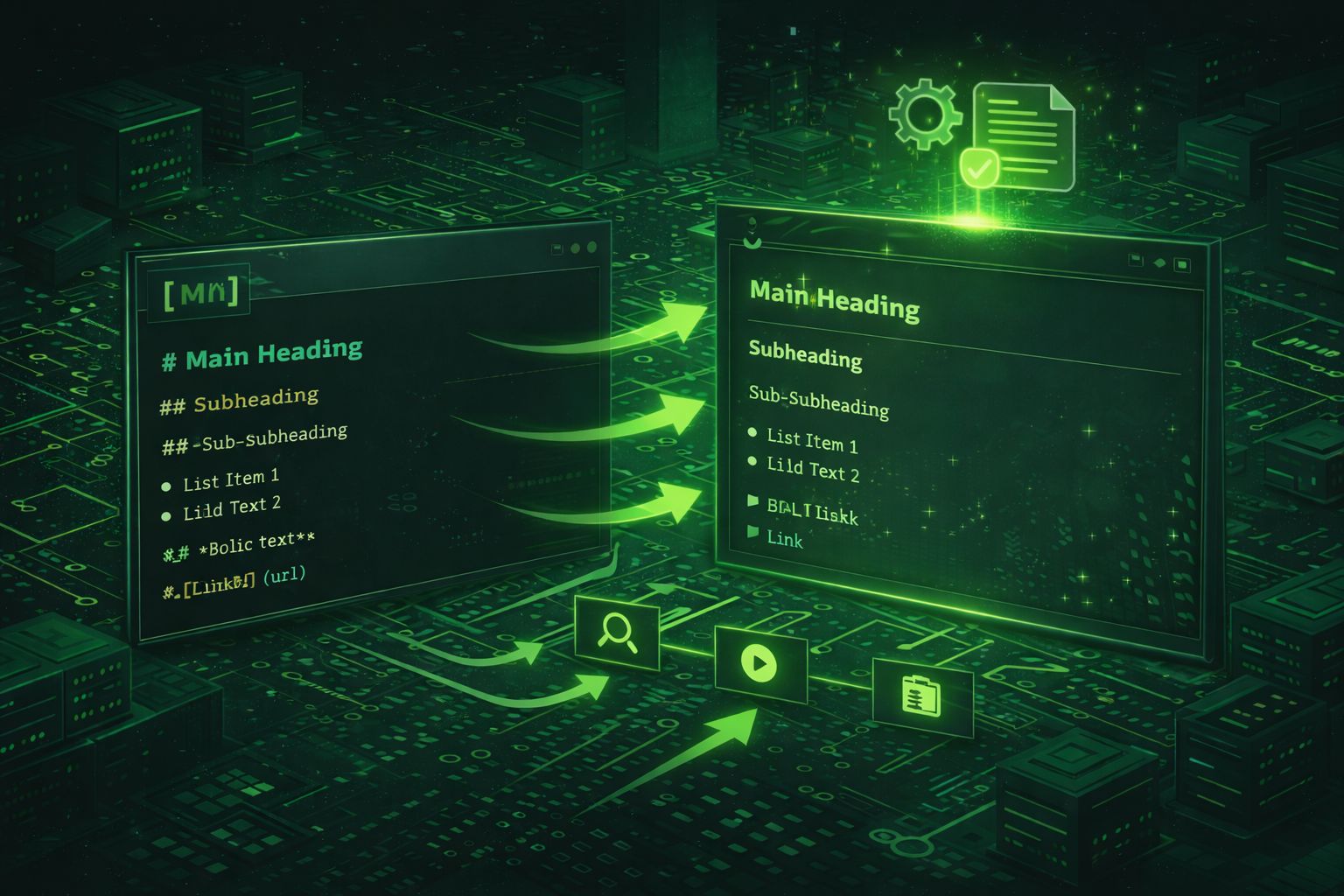
Markdown is a lightweight markup language created by John Gruber and Aaron Swartz in 2004. It uses plain text formatting syntax that is easy to read and write, making it ideal for creating formatted content without the complexity of HTML or rich text editors. Markdown files use the .md or .markdown extension and can be converted to HTML, PDF, and other formats.
The beauty of Markdown lies in its simplicity. Instead of writing complex HTML tags like <h1>, <strong>, or <ul>, you use intuitive symbols like # for headers, ** for bold text, and - for lists. This makes Markdown accessible to both technical and non-technical users, while still providing powerful formatting capabilities.
Markdown has become the de facto standard for documentation, README files, blog posts, and content creation across platforms like GitHub, Reddit, Stack Overflow, and many static site generators. The Markdown Editor by DevToolsPro.org provides a free, privacy-focused tool for editing markdown with live preview, making it easy to see your formatted content in real-time as you write.
For developers, Markdown offers several advantages:
Whether you're writing documentation, creating blog posts, taking notes, or contributing to open-source projects, understanding Markdown and using a quality markdown editor can significantly improve your productivity and content quality.
Complete Markdown Syntax Reference: Headers, Text Formatting, and More
Mastering Markdown syntax is essential for effective content creation. The language provides intuitive symbols for common formatting needs, making it easy to create well-structured documents.
Headers
Headers create document structure and hierarchy. Use one to six hash symbols (#) followed by a space to create headers from H1 to H6:
# Header 1creates the largest header (H1)## Header 2creates an H2 header### Header 3creates an H3 header- Continue up to
###### Header 6for the smallest header
Headers help organize content and improve readability. Use them to create clear document structure, making it easier for readers to navigate and understand your content hierarchy.
Text Emphasis
Markdown provides multiple ways to emphasize text:
- Bold: Use
**bold text**or__bold text__to create bold text - Italic: Use
*italic text*or_italic text_to create italic text - Bold and Italic: Use
***bold and italic***or___bold and italic___for combined emphasis - Strikethrough: Use
~~strikethrough~~to createstrikethroughtext (in some Markdown flavors)
The DevToolsPro.org Markdown Editor supports all standard emphasis syntax, allowing you to see formatted text instantly in the live preview pane.
Lists
Markdown supports both ordered and unordered lists:
Unordered Lists: Use dashes (-), pluses (+), or asterisks (*) followed by a space. All three symbols produce the same result:
- First item
- Second item
  - Nested item
- Third item
Ordered Lists: Use numbers followed by periods (1., 2., etc.). Markdown automatically numbers items correctly, so you can use 1. for all items:
1. First item
2. Second item
   1. Nested item
3. Third item
Lists can be nested by indenting items with two or more spaces. This creates hierarchical structures perfect for outlines, documentation, and step-by-step guides.
Links and Images
Links use the format [link text](URL) with optional titles: [link text](URL "title"). For example, [DevToolsPro.org](https://devtoolspro.org) creates a clickable link.
Images use similar syntax with an exclamation mark: . The alt text appears if the image cannot be loaded and improves accessibility. You can also use reference-style links and images for cleaner source text.
Code
Markdown provides two ways to include code:
- Inline Code: Use backticks (
`code`) to format inline code snippets within paragraphs - Code Blocks: Use triple backticks (
```) to create code blocks. You can specify a language for syntax highlighting:```javascriptor```python
Code blocks preserve formatting and are ideal for sharing code snippets, configuration examples, or terminal output. The markdown editor's live preview shows code blocks with proper formatting and syntax highlighting.
Blockquotes
Use the greater-than symbol (>) followed by a space to create blockquotes. Blockquotes are perfect for highlighting important information, citations, or callouts:
> This is a blockquote.
> It can span multiple lines.
>
> And include multiple paragraphs.
Blockquotes can be nested by using multiple > symbols, creating layered quote structures.
Horizontal Rules
Create horizontal dividers using three or more dashes (---), asterisks (***), or underscores (___). Horizontal rules help separate sections and improve document structure.
Why Live Preview Markdown Editors Are Essential
While you can write Markdown in any text editor, using a dedicated markdown editor with live preview offers significant advantages. The DevToolsPro.org Markdown Editor provides real-time preview functionality that transforms your writing experience.
Instant Visual Feedback
Live preview editors show you exactly how your formatted content will appear as you type. This eliminates guesswork and reduces errors, allowing you to focus on content creation rather than syntax memorization. You can immediately see if headers are properly sized, if lists are formatted correctly, and if links work as expected.
Traditional text editors require you to switch between source and preview modes, interrupting your writing flow. Live preview editors eliminate this friction, creating a seamless writing experience that feels natural and intuitive.
Error Detection and Correction
With live preview, formatting errors become immediately apparent. If a header doesn't appear correctly, if a link is broken, or if code formatting looks wrong, you can see and fix it instantly. This real-time feedback prevents small mistakes from becoming larger problems later.
The markdown editor's split-view mode displays your source markdown alongside the rendered preview, making it easy to compare and verify that your syntax produces the desired output.
Improved Writing Flow
Seeing formatted output as you write helps maintain context and improves content quality. You can better judge paragraph length, heading hierarchy, and overall document structure when you see the rendered output in real-time.
This visual feedback is particularly valuable when creating complex documents with multiple sections, nested lists, code blocks, and various formatting elements. The live preview helps ensure consistency and proper formatting throughout your document.
Learning and Mastery
For those new to Markdown, live preview editors serve as excellent learning tools. You can experiment with syntax and immediately see the results, accelerating your understanding of Markdown's capabilities and best practices.
The DevToolsPro.org Markdown Editor includes quick action buttons for common markdown syntax, making it easy to insert headers, bold text, links, and other formatting elements without memorizing syntax.
Privacy and Security
Browser-based markdown editors like DevToolsPro.org run entirely locally, ensuring your content never leaves your device. This privacy-first approach is essential when working with sensitive documentation, proprietary content, or personal notes.
Unlike cloud-based editors that send your content to servers, local markdown editors process everything in your browser using JavaScript. This means your content remains completely private and secure, with no risk of data breaches or unauthorized access.
Markdown for Developers: Documentation, README Files, and Technical Writing
Markdown has become the standard format for developer documentation, README files, and technical writing. Understanding how to effectively use Markdown in development contexts is essential for modern software development.
README Files
Every GitHub repository should have a well-written README.md file. A good README provides project overview, installation instructions, usage examples, and contribution guidelines. Markdown makes it easy to create professional, readable README files that help users understand and use your project.
Effective README files use clear headers to organize sections, code blocks for installation commands, and lists for features and requirements. The markdown editor's live preview helps ensure your README looks professional and is easy to navigate.
API Documentation
Many API documentation tools accept Markdown, making it the preferred format for documenting REST APIs, GraphQL schemas, and library interfaces. Markdown's code block support is perfect for showing request/response examples, while its structure helps organize endpoints, parameters, and examples.
Tools like Swagger, Slate, and MkDocs use Markdown for API documentation, allowing developers to write documentation alongside code and maintain it in version control systems.
Technical Blog Posts
Many technical blogs and documentation sites use Markdown for blog posts. Static site generators like Jekyll, Hugo, Gatsby, and Next.js support Markdown, allowing developers to write blog posts in a simple format and generate beautiful websites automatically.
Markdown's simplicity makes it easy to write technical content without getting distracted by formatting. You can focus on explaining concepts, sharing code examples, and providing clear instructions.
Code Comments and Documentation
Some documentation generators extract Markdown from code comments to generate API documentation. Tools like JSDoc (JavaScript), Sphinx (Python), and Doxygen (C++) can process Markdown-formatted comments, creating comprehensive documentation from source code.
Writing documentation in Markdown within code comments ensures that documentation stays close to the code it describes, making it easier to keep documentation up-to-date as code evolves.
Issue Tracking and Pull Requests
Platforms like GitHub, GitLab, and Bitbucket support Markdown in issue descriptions, pull request comments, and commit messages. Using Markdown in these contexts helps create clear, well-formatted communication that improves collaboration and code review processes.
The markdown editor helps you write clear issue descriptions and pull request comments with proper formatting, code examples, and structured information that makes reviews more efficient.
Best Practices for Developer Documentation
When writing developer documentation in Markdown:
- Use Clear Headers: Create a logical hierarchy with headers to help readers navigate your documentation
- Include Code Examples: Use code blocks with language specification for syntax highlighting
- Add Tables: Markdown tables are perfect for API parameters, configuration options, and comparison charts
- Use Lists: Break down complex instructions into numbered or bulleted lists
- Include Links: Link to related documentation, external resources, and code references
- Add Blockquotes: Highlight important warnings, notes, or tips
The DevToolsPro.org Markdown Editor provides all the tools you need to create professional developer documentation with proper formatting and structure.
Advanced Markdown Features and Extensions
While basic Markdown syntax covers most needs, many editors and platforms support extended Markdown features that add powerful capabilities. Understanding these extensions helps you create more sophisticated documents.
Tables
Markdown tables use pipes (|) to separate columns and dashes to create headers. Tables are perfect for displaying structured data, API parameters, or comparison charts:
| Column 1 | Column 2 | Column 3 |
|----------|----------|----------|
| Row 1    | Data     | Value   |
| Row 2    | Data     | Value   |
Tables can be aligned using colons in the header row. Left-aligned uses :---, right-aligned uses ---:, and center-aligned uses :---:.
Task Lists
Many Markdown implementations support task lists (checkboxes) using - [ ] for unchecked items and - [x] for checked items. Task lists are perfect for README files, project planning, and documentation that includes action items:
- [x] Completed task
- [ ] Incomplete task
- [ ] Another task
Fenced Code Blocks with Syntax Highlighting
While basic code blocks preserve formatting, fenced code blocks with language specification enable syntax highlighting. Specify the language after the opening backticks:
```javascript
function greet(name) {
  return `Hello, ${name}!`;
}
```
Syntax highlighting makes code more readable and helps identify syntax errors. Most markdown processors support dozens of programming languages for syntax highlighting.
Math and LaTeX
Some Markdown processors support mathematical notation using LaTeX syntax. Inline math uses $...$ and block math uses $$...$$. This is particularly useful for technical documentation, academic papers, and scientific content.
Footnotes
Extended Markdown supports footnotes using [^1] for references and [^1]: for definitions. Footnotes help maintain document flow while providing additional information or citations.
Definition Lists
Some Markdown flavors support definition lists for glossaries and term definitions:
Term 1
: Definition of term 1

Term 2
: Definition of term 2
Emoji and Special Characters
Many Markdown processors support emoji shortcuts like :smile: or direct Unicode emoji. Emoji can add visual interest to documentation, README files, and blog posts, though they should be used sparingly in professional documentation.
The DevToolsPro.org Markdown Editor focuses on core Markdown syntax that works across all platforms, ensuring your content is compatible with GitHub, documentation tools, and static site generators.
Best Practices for Writing Markdown
Following Markdown best practices ensures your documents are readable, maintainable, and compatible across different platforms and processors.
Consistent Formatting
Use consistent formatting throughout your documents. Choose one style for emphasis (prefer **bold** over __bold__), stick to one list marker type, and maintain consistent header hierarchy. Consistency improves readability and makes documents easier to maintain.
The markdown editor's live preview helps you spot inconsistencies immediately, allowing you to maintain uniform formatting throughout your document.
Proper Header Hierarchy
Use headers in logical order (H1 → H2 → H3) without skipping levels. Start with a single H1 for the document title, use H2 for major sections, and H3 for subsections. Proper hierarchy improves document structure and helps screen readers navigate your content.
Meaningful Link Text
Use descriptive link text rather than generic phrases like "click here" or "read more." Good link text describes the destination, improving accessibility and helping readers understand where links lead without clicking them.
For example, use [Markdown Editor Guide](url) instead of [click here](url). Descriptive link text also improves SEO and helps search engines understand your content.
Code Block Language Specification
Always specify the programming language for code blocks. This enables syntax highlighting and makes code more readable. Even if a processor doesn't support highlighting, specifying the language documents your intent and helps future readers.
Line Length and Wrapping
While Markdown processors handle long lines, keeping lines under 80-100 characters improves source readability. Hard line breaks (two spaces at end of line) create actual line breaks, while soft breaks (single newline) create paragraph breaks.
For code blocks and preformatted text, preserve exact formatting. For regular paragraphs, let the processor handle wrapping unless you need specific line breaks.
Use Lists for Sequential Information
Use ordered lists for sequential steps, procedures, or ranked information. Use unordered lists for collections of related items without specific order. Lists improve scannability and make information easier to digest.
Include Alt Text for Images
Always include meaningful alt text for images. Alt text improves accessibility for screen readers and appears when images cannot be loaded. Good alt text describes the image's content and purpose, not just its appearance.
Test Across Platforms
Different Markdown processors may render the same syntax slightly differently. Test your Markdown on the target platform (GitHub, your blog engine, documentation tool) to ensure it renders correctly. The markdown editor's live preview provides a good approximation, but platform-specific testing ensures compatibility.
The DevToolsPro.org Markdown Editor helps you write clean, standards-compliant Markdown that works across platforms, reducing compatibility issues.
Markdown Tools and Ecosystem
The Markdown ecosystem includes numerous tools, editors, and processors that extend Markdown's capabilities and integrate it into various workflows.
Markdown Editors
Markdown editors range from simple browser-based tools to full-featured desktop applications. Browser-based editors like the DevToolsPro.org Markdown Editor offer convenience and privacy, running entirely in your browser without requiring installation.
Desktop editors like Typora, Mark Text, and Zettlr provide advanced features like WYSIWYG editing, file management, and export options. These tools are ideal for extensive writing projects and document management.
Code editors like VS Code, Sublime Text, and Atom include Markdown preview plugins, making them excellent choices for developers who want to edit Markdown alongside code.
Static Site Generators
Many static site generators use Markdown as their primary content format. Jekyll (Ruby), Hugo (Go), Gatsby (React), Next.js (React), and Eleventy (JavaScript) all support Markdown, allowing you to write content in Markdown and generate static websites automatically.
These generators process Markdown files, apply themes, and generate HTML websites that can be deployed to GitHub Pages, Netlify, Vercel, or any static hosting service.
Documentation Generators
Documentation tools like MkDocs, Docusaurus, GitBook, and Sphinx use Markdown for creating comprehensive documentation sites. These tools combine Markdown content with navigation, search, and theming to create professional documentation websites.
Many API documentation tools also support Markdown, making it easy to write API documentation alongside code and maintain it in version control.
Note-Taking Applications
Modern note-taking apps like Obsidian, Notion, Bear, and Roam Research use Markdown or Markdown-like syntax. These tools combine Markdown's simplicity with advanced features like linking, tagging, and knowledge graph visualization.
Using Markdown in note-taking apps ensures your notes are portable and future-proof, not locked into proprietary formats.
Markdown Processors
Markdown processors convert Markdown to HTML and other formats. Popular processors include:
- Marked.js: Fast, JavaScript-based processor for browsers and Node.js
- Pandoc: Universal document converter that supports Markdown and many output formats
- CommonMark: Standardized Markdown specification with reference implementations
- GitHub Flavored Markdown: Extended Markdown used by GitHub with tables, task lists, and more
The DevToolsPro.org Markdown Editor uses a custom processor that supports core Markdown syntax, ensuring compatibility with standard Markdown processors and platforms.
Integration with Development Tools
Markdown integrates seamlessly with development workflows. Version control systems track Markdown files, CI/CD pipelines can process Markdown, and documentation can be generated automatically from Markdown source files.
Many development tools support Markdown in comments, issue tracking, and documentation, making Markdown an essential skill for modern developers.
Privacy and Security in Markdown Editing
When choosing a markdown editor, privacy and security should be primary considerations, especially when working with sensitive documentation, proprietary content, or personal notes.
Local Processing vs. Cloud Services
Browser-based markdown editors like the DevToolsPro.org Markdown Editor process all content locally in your browser. This means your markdown never leaves your device, ensuring complete privacy and security.
Cloud-based editors send your content to remote servers for processing, creating potential privacy risks. Even if providers claim not to store content, your data passes through their servers, creating opportunities for interception or logging.
No Data Collection
Privacy-focused markdown editors don't collect analytics, don't use tracking scripts, and don't require registration. Your writing activity remains completely private, with no records of what you write, when you write, or how you use the editor.
The DevToolsPro.org Markdown Editor runs entirely client-side, using no external services or APIs. This ensures your content remains completely private and secure.
Offline Capability
Browser-based markdown editors work offline after the initial page load. This means you can write and edit markdown without an internet connection, ensuring your work isn't interrupted by connectivity issues and that your content isn't transmitted over networks.
Offline capability is particularly valuable when working in secure environments, on airplanes, or in areas with unreliable internet connectivity.
Open Source and Auditable
Many privacy-focused markdown editors use open-source code that can be audited for security and privacy issues. You can inspect the code to verify that no data collection occurs and that processing happens entirely client-side.
The ability to audit code builds trust and ensures transparency. You can verify that editors behave as claimed and don't include hidden data collection or security vulnerabilities.
Secure Content Handling
When working with sensitive content like API keys, passwords, proprietary information, or confidential documentation, using a privacy-focused markdown editor is essential. Local processing ensures that sensitive information never leaves your device.
Even if you're writing non-sensitive content, privacy-focused tools protect your intellectual property and ensure that your work remains yours, without risk of unauthorized access or data breaches.
Frequently Asked Questions About Markdown Editing
Common questions about Markdown, markdown editors, and best practices:
What is the difference between Markdown and HTML?
Markdown is a simplified markup language designed for readability and ease of writing, while HTML is a full markup language with more features but greater complexity. Markdown converts to HTML, so you can write in Markdown and generate HTML automatically. Markdown is easier to read and write, while HTML provides more control over formatting and structure.
Can I use Markdown in GitHub?
Yes! GitHub supports Markdown extensively. README files, issue descriptions, pull request comments, wiki pages, and documentation all support Markdown. GitHub uses GitHub Flavored Markdown (GFM), which includes extensions like tables, task lists, and automatic linking.
Do I need special software to write Markdown?
No, you can write Markdown in any text editor. However, using a markdown editor with live preview, like the DevToolsPro.org Markdown Editor, makes writing easier by showing formatted output as you type. You can also use code editors with Markdown plugins or dedicated Markdown applications.
Is Markdown the same everywhere?
Core Markdown syntax is consistent across platforms, but many platforms add extensions. GitHub Flavored Markdown includes tables and task lists, while some processors support math notation, footnotes, and other features. The DevToolsPro.org Markdown Editor focuses on core syntax that works everywhere.
Can I convert Markdown to other formats?
Yes! Markdown can be converted to HTML, PDF, Word documents, and many other formats using tools like Pandoc, Marked, or online converters. Many static site generators automatically convert Markdown to HTML when building websites.
Is Markdown good for long documents?
Yes, Markdown works well for long documents. Use headers to create structure, lists for organization, and code blocks for examples. Many authors use Markdown for books, documentation, and extensive writing projects. The markdown editor's live preview helps maintain structure in long documents.
Can I use Markdown in email?
Some email clients and services support Markdown, but it's not universal. Most email clients don't render Markdown directly. However, you can write emails in Markdown and convert them to HTML before sending, or use email services that support Markdown.
How do I learn Markdown?
Markdown is easy to learn! Start with basic syntax like headers, bold, italic, and lists. Practice by writing a README file or blog post. Use a markdown editor with live preview to see results immediately. The DevToolsPro.org Markdown Editor includes quick action buttons that help you learn syntax by inserting common formatting elements.
Is my Markdown content private?
With privacy-focused editors like DevToolsPro.org, yes! The editor runs entirely in your browser, so your content never leaves your device. All processing happens locally, ensuring complete privacy. Cloud-based editors may send content to servers, so choose your editor based on your privacy requirements.
Can I use Markdown offline?
Yes! Browser-based markdown editors work offline after the initial page load. You can write and edit markdown without an internet connection. Desktop markdown editors also work offline. Only cloud-based editors require internet connectivity.
Conclusion: Mastering Markdown for Modern Content Creation
Markdown has revolutionized how we write formatted content, offering a simple, readable syntax that works across platforms and tools. Whether you're a developer writing documentation, a content creator writing blog posts, or a student taking notes, Markdown provides a powerful yet accessible way to create well-formatted content.
The DevToolsPro.org Markdown Editor makes Markdown editing accessible to everyone, providing live preview, quick action buttons, and privacy-focused processing. With real-time preview, you can see your formatted content as you write, making it easy to create professional documents without complex formatting tools.
Key takeaways for effective Markdown usage:
- Learn Core Syntax: Master headers, emphasis, lists, links, and code blocks — these cover most formatting needs
- Use Live Preview: Markdown editors with live preview accelerate learning and improve writing quality
- Follow Best Practices: Consistent formatting, proper header hierarchy, and meaningful link text improve readability
- Choose Privacy-Focused Tools: Browser-based editors that process content locally protect your privacy and security
- Test Across Platforms: Verify your Markdown renders correctly on target platforms to ensure compatibility
- Practice Regularly: Write README files, documentation, and blog posts in Markdown to build proficiency
Markdown's simplicity and power make it an essential skill for modern content creation. From GitHub README files to technical documentation, from blog posts to note-taking, Markdown provides a universal format that works everywhere while remaining readable and maintainable.
Start creating formatted content today with the free Markdown Editor by DevToolsPro.org — fast, secure, and completely private.