Why JavaScript File Size Directly Impacts Your Users and Rankings
JavaScript is the most expensive resource type on the modern web — not because files are large by default, but because the browser must parse, compile, and execute every byte before it can render interactive content. A 200 KB compressed JavaScript file imposes far more processing cost than a 200 KB image: the image is decoded once and painted; the JS must be tokenized, parsed into an AST, compiled to bytecode, and executed — potentially blocking the main thread throughout. V8's parse time alone for 1 MB of JavaScript is roughly 1 second on a mid-range phone.
Google's Core Web Vitals — specifically Total Blocking Time (TBT) and Largest Contentful Paint (LCP) — are directly harmed by large JS payloads. Any task running longer than 50 ms blocks the main thread and delays every click, scroll, and tap until it finishes. A 2017 Google study of large e-commerce sites found that every 100ms of additional mobile load time correlated with a ~1% drop in conversion rate — a figure widely cited because the underlying relationship (latency → abandonment) has been replicated across multiple analyses since.
The practical reality: the median web page ships 500 KB of JavaScript to mobile devices in 2026. A mid-range Android phone takes roughly 3–4 seconds to parse and execute that payload. 53% of mobile visits are abandoned if a page takes longer than 3 seconds to load.
Compressing your JavaScript file size is the fastest lever you have. Minification alone typically reduces raw file size by 40–70%. Add transport compression (Brotli or gzip) and the payload reaching the browser is often 80–90% smaller than the original source. This guide covers every layer of that reduction — starting with the fastest approach you can use right now, without any build tools.
How to Compress a JavaScript File Online (Step by Step)
The DevToolsPro.org JavaScript Minifier compresses your code directly in the browser — no server upload, no account, no file size limits for typical scripts. Here is exactly how to use it:
Step 1: Paste Your JavaScript
Open the JS Minifier tool and paste your code into the input panel on the left. The tool accepts any valid JavaScript — vanilla JS, framework-specific code, utility functions, or entire file contents. It processes as you type, so results appear immediately.
What to paste: Your unminified, development-version JavaScript. If you only have a previously minified file, run it through a JavaScript beautifier first to restore readability before re-minifying with full options.
Step 2: Choose Your Compression Options
The tool exposes four options you can combine:
- Remove comments — strips both
//single-line and/* */multi-line comments. Enable this for all production builds. Exception:/*! */license comments you are legally required to preserve. - Remove whitespace — collapses all indentation, newlines, and extra spaces. This alone accounts for 20–40% of typical source file size.
- Remove unnecessary semicolons — removes semicolons that ASI (Automatic Semicolon Insertion) handles safely. Use with caution on code that relies on unexpected ASI edge cases (see the mistakes section below).
- Remove unnecessary quotes — removes quotes around object keys that are valid identifiers. Safe for well-formed code.
Step 3: Check the Reduction Percentage
The output panel shows the character count and reduction percentage. A well-formatted source file with good comments typically compresses 50–65% from whitespace and comment removal alone. If you are seeing less than 20% reduction, your source file may already have minimal whitespace or may contain a high proportion of string literals (which cannot be shortened).
Step 4: Copy and Deploy
Click the copy button and paste the minified output into your production file. Rename the file with a .min.js suffix by convention: app.min.js, utils.min.js. Keep the original unminified file in your repository — never commit only the minified version.
When the Online Tool Is the Right Choice
The online minifier is ideal for: quick one-off compressions, debugging a specific file, checking compression potential before automating it, and working on projects without a build pipeline. For projects with a package.json, automating minification in your build script is more practical — see the build tool section below.
What JavaScript Minification Actually Does to Your Code
Minification is a pipeline of independent transformations, not a single operation. Each step targets a different source of bloat — knowing which does what tells you both what to expect and what can go wrong.
1. Whitespace and Comment Removal
Every space, tab, newline, and comment that does not affect execution is stripped. For a well-commented codebase, this single step accounts for the majority of size reduction — often 30–50% of source file size. It is the only minification step with zero risk of behavior change.
// Before (183 bytes)
function calculateTotal(items) {
  // Sum up all item prices
  return items.reduce((sum, item) => {
    return sum + item.price;
  }, 0);
}

// After (67 bytes — 63% smaller)
function calculateTotal(items){return items.reduce((sum,item)=>{return sum+item.price},0)}
2. Identifier Mangling (Variable Renaming)
Advanced minifiers like Terser rename local variables and function parameters to single characters. calculateTotal becomes a, items becomes b, and so on. This is safe for local scope identifiers because nothing outside the function refers to them by name. It is not applied to exported names (those must stay stable for callers).
// After mangling (more aggressive minifier)
function a(b){return b.reduce((c,d)=>{return c+d.price},0)}
Mangling is the reason minified files are dramatically smaller than whitespace-stripping alone. A function with 20 descriptive local variable names becomes a cascade of single letters.
3. Dead Code Elimination
Code that can provably never execute is removed. Basic minifiers eliminate constant-condition branches and variables assigned but never referenced. They do not remove entire unused functions — that requires tree-shaking at the bundler level, which can analyze the full import graph. The distinction matters: if you have an exported utility function that nothing imports, a minifier alone will not remove it.
// Basic minifier CAN remove: constant-false branch
const DEBUG = false;
if (DEBUG) {
  console.log('This never runs');  // ← removed (provably dead)
}

// Basic minifier CANNOT remove: exported but uncalled function
// (tree-shaking required — see Layer 2 below)
export function unusedHelper() { return 42; }
// ↑ stays in the output unless the bundler's tree-shaker eliminates it
4. Constant Folding and Expression Simplification
Compile-time constants are evaluated so the browser does not have to. 60 * 60 * 1000 becomes 3600000. "hello" + " " + "world" becomes "hello world". Terser and esbuild both do this.
5. Syntactic Shortcuts
Verbose syntax patterns are collapsed to shorter equivalents:
// Before
if (x === true) { return true; } else { return false; }

// After
return x === true;
// Before
var x = undefined;
// After
var x;A Before/After on a Real-World Snippet
// BEFORE — development version (421 bytes)
/**
 * Debounce function - delays execution until after wait ms
 * have elapsed since the last call.
 * @param {Function} func - Function to debounce
 * @param {number} wait - Milliseconds to wait
 */
function debounce(func, wait) {
  let timeoutId = null;

  return function executedFunction(...args) {
    const delayedExecution = () => {
      clearTimeout(timeoutId);
      func(...args);
    };

    clearTimeout(timeoutId);
    timeoutId = setTimeout(delayedExecution, wait);
  };
}

// AFTER — minified (140 bytes, 67% reduction)
function debounce(func,wait){let timeoutId=null;return function(...args){const d=()=>{clearTimeout(timeoutId);func(...args)};clearTimeout(timeoutId);timeoutId=setTimeout(d,wait)}}
The 4 Layers of JavaScript Size Reduction (Ranked by Impact)
Developers often treat "compress my JavaScript" as a single action. It is actually four independent techniques that stack multiplicatively. Applying only one leaves most of the available gain on the table.
Layer 1: Minification — What You Control
Removes unnecessary characters and simplifies syntax. Works on any file, no dependency graph needed. This is what online tools and build-step minifiers do. Expected reduction: 40–70% of raw source size for typical application code.
Layer 2: Tree-Shaking — Remove What You Don't Use
Tree-shaking analyzes your module import graph and removes exported functions and classes that nothing imports. It requires ES modules (import/export syntax) because these are statically analyzable — the bundler can determine at build time exactly which exports are used without running the code. CommonJS (require()) is dynamic: require(someVariable) or conditional requires mean the bundler cannot know at build time what will be needed, so it must include everything.
// ✓ Tree-shakeable — ES module with named exports
// utils.js
export function formatDate(d) { ... }  // ← included if imported
export function parseDate(s) { ... }   // ← removed if never imported

// ✗ Not tree-shakeable — CommonJS
// utils.js
module.exports = { formatDate, parseDate };
// Bundler must include the entire module because require() is dynamic
Tree-shaking is performed by bundlers (webpack, Rollup, Vite, esbuild) — not by online minifiers. The practical impact can exceed minification alone: replacing moment.js (72 KB minified) with date-fns imported selectively reduces the calendar-related code to under 5 KB.
The sideEffects field — why tree-shaking silently fails: webpack will not tree-shake a module unless it knows that importing it has no side effects (code that runs on import and changes global state). If you are the author of a library, add "sideEffects": false to your package.json. For app code in webpack, mark specific files as side-effect-free:
// package.json — tell webpack this package is fully tree-shakeable
{
  "name": "my-utils",
  "sideEffects": false,

  // Or allowlist specific files that DO have side effects:
  "sideEffects": ["./src/polyfills.js", "*.css"]
}

// Without this field, webpack must assume every import may mutate globals
// and will include every module it can find, even if nothing uses it.
Layer 3: Code Splitting — Load Less Per Page
Code splitting divides your JavaScript into multiple smaller chunks that load on demand. Route-based splitting in React/Vue means the homepage downloads only the code it needs; the dashboard code loads only when the user navigates there. This does not reduce total JavaScript — it reduces the JavaScript parsed on any given page load.
// Dynamic import — the bundler creates a separate chunk for this module
const AdminPanel = lazy(() => import('./AdminPanel'));

// Only downloaded and parsed when the user navigates to /admin
Layer 4: Transport Compression — The Server's Job
After minification, the file is further compressed during HTTP transfer using Brotli or gzip. This operates on the byte stream, not the code structure, and is transparent to the browser (it decompresses automatically). Transport compression stacks on top of minification — apply it to already-minified files.
- Brotli (br): 14–25% smaller than gzip on JavaScript. Supported by 98%+ of browsers. Use quality level 11 for static pre-compression, level 4–6 for on-the-fly.
- gzip: Universal support. Fallback for environments where Brotli is unavailable.
# nginx — serve pre-compressed Brotli with gzip fallback
# Note: Brotli requires the ngx_brotli module (not in stock nginx)
# Install: https://github.com/google/ngx_brotli
# Debian/Ubuntu: apt install libnginx-mod-http-brotli-static
brotli on;
brotli_static on;       # serves pre-compressed .br files
brotli_comp_level 6;

gzip on;
gzip_static on;         # serves pre-compressed .gz files
gzip_comp_level 6;
gzip_types text/javascript application/javascript;

# Caddy (built-in Brotli — no modules needed)
# encode zstd br gzip
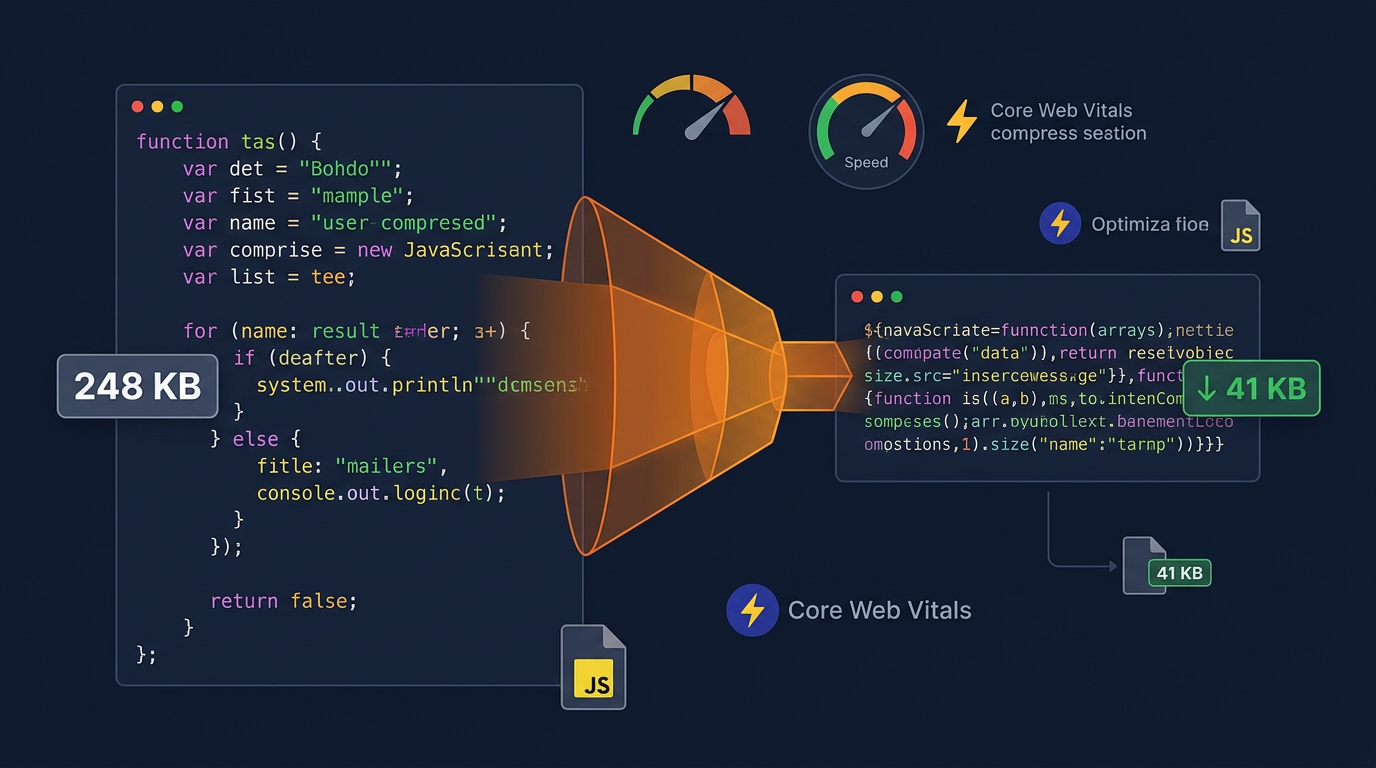
A 200 KB source file → 120 KB minified → 28 KB Brotli-compressed. The browser receives 28 KB, decompresses to 120 KB in memory, and executes. All four layers work together; you do not choose one.
Minification Tools Compared: Terser, esbuild, UglifyJS, and SWC
Choosing the right minifier for your build pipeline is a tradeoff between output size and build speed. The options differ significantly — here is what the data says.
Terser — Best Compression, Industry Standard
Terser is the default minifier in webpack 5, Vite's production builds, and most modern frontend toolchains. It produces the smallest output of any mainstream tool because it applies all five transformation layers (whitespace, mangling, dead code, constant folding, syntax shortcuts).
# Install
npm install terser --save-dev

# CLI — single file
npx terser input.js --compress --mangle --output output.min.js

# With source map
npx terser input.js --compress --mangle --source-map --output output.min.js
Real benchmark (React 17.0.2): Terser produces 8.32 KB minzipped at ~470ms. It is the right choice for production builds where bundle size is the priority.
esbuild — 30x Faster, Slightly Larger Output
esbuild is written in Go and compiles to native code. It is 10–100x faster than Terser at the cost of 3–8% larger output. For large codebases (100,000+ lines), Terser's build time can become a meaningful bottleneck; esbuild eliminates it entirely.
# Install
npm install esbuild --save-dev

# Minify a file
npx esbuild input.js --minify --outfile=output.min.js

# Bundle and minify
npx esbuild src/index.js --bundle --minify --outfile=dist/bundle.min.js
Real benchmark (React 17.0.2): esbuild produces 8.53 KB minzipped at ~32ms — 2.5% larger than Terser but 15x faster. For development-mode rebuilds and CI pipelines with tight time budgets, esbuild is the right choice.
UglifyJS — Legacy ES5 Only
UglifyJS pioneered JavaScript minification but does not support ES6+ syntax. If you run UglifyJS on modern JavaScript that uses arrow functions, const/let, template literals, or optional chaining, it will throw parse errors. Use it only for projects that must target old browsers and are already transpiled to ES5.
SWC — The Choice for Next.js and Rust-Based Toolchains
SWC (Speedy Web Compiler) is written in Rust and has been the default minifier in Next.js since version 12. It produces output competitive with Terser (within ~1–2%) and runs at esbuild-comparable speeds. If your stack already uses SWC for transpilation, using it for minification avoids a second AST parse entirely — meaningful savings at scale.
// next.config.js
// Next.js 12–14: swcMinify was a config option (default: true)
// Next.js 15+:   swcMinify removed — SWC minification is always on, no config key needed
/** @type {import('next').NextConfig} */
const nextConfig = {
  // swcMinify: true  ← do NOT include in Next.js 15+, throws deprecation warning
  compiler: {
    removeConsole: { exclude: ['error'] },  // drops console.log, keeps console.error
  },
};
module.exports = nextConfig;

// Standalone SWC CLI (outside Next.js)
// npm install @swc/cli @swc/core --save-dev
// npx swc input.js --out-file output.min.js --config-file .swcrc
oxc-minify — The Emerging Rust-Based Contender
oxc-minify (part of the Oxc project) entered alpha in March 2025 as the planned default minifier for Rolldown — the Rust-based bundler that will replace Rollup as Vite's internal engine in Vite 7. Early benchmarks show it outperforming esbuild in raw speed while producing output competitive with Terser. It is not yet production-ready for standalone use, but if you are building on Vite today, it is what your builds will use by default within the next major release cycle.
A note on benchmark precision: The real-world difference between Terser, esbuild, and SWC on a typical application bundle is 1–3% in output size. On React v19, L0ss benchmarks show esbuild (8.63 KB) and Terser (8.70 KB) within 0.9% of each other — effectively the same size. Choosing a minifier on compression ratio alone at this point is premature optimization; build speed and toolchain compatibility matter far more.
Which to Use
- Vite (Vue, React, Svelte): Terser is the default for
vite build. No configuration needed. - webpack: Terser via
TerserPlugin(default in webpack 5 production mode). - Large monorepo or fast CI: Replace Terser with esbuild using
esbuild-loaderor Vite'sbuild.minify: 'esbuild'. - Next.js: SWC minifier is the default since Next.js 12. Do not override it.
- Legacy ES5 codebase: UglifyJS 3 (but migrate to modern JS when you can).
How to Automate JavaScript Compression in Your Build Pipeline
Manual compression before every deploy is a reliable way to forget it once. Every major build tool supports minification natively — the configurations below are copy-paste ready.
Vite
Vite minifies automatically in production mode with Terser as the default. Two common configurations:
// vite.config.js — option A: Terser (default, smallest output)
export default {
  build: {
    minify: 'terser',
    terserOptions: {
      compress: {
        drop_console: true,   // removes all console.log() calls
        drop_debugger: true,
        passes: 2,            // second pass finds more optimization opportunities
      },
    },
  },
};

// vite.config.js — option B: esbuild (30x faster builds, ~3% larger output)
// Use this in large projects where Terser adds seconds to CI build time
export default {
  build: {
    minify: 'esbuild',
    // esbuild has no terserOptions — it uses its own defaults
    // To drop console.log with esbuild, use esbuildOptions:
    esbuildOptions: {
      drop: ['console', 'debugger'],
    },
  },
};
webpack
// webpack.config.js
const TerserPlugin = require('terser-webpack-plugin');

module.exports = {
  mode: 'production',  // enables minification automatically
  optimization: {
    minimize: true,
    minimizer: [
      new TerserPlugin({
        terserOptions: {
          compress: {
            drop_console: true,
          },
          mangle: true,
          format: {
            comments: false,  // removes all comments including license headers
            // Use extractComments: true instead to move license comments to
            // a separate .LICENSE.txt file rather than stripping them entirely
          },
        },
        extractComments: false,
      }),
    ],
  },
};
Rollup
// rollup.config.js
import terser from '@rollup/plugin-terser';

export default {
  input: 'src/index.js',
  output: {
    file: 'dist/bundle.min.js',
    format: 'es',
  },
  plugins: [
    terser({
      compress: { drop_console: true },
      mangle: true,
    }),
  ],
};
npm Script (No Build Tool)
For projects without a bundler, add Terser directly as an npm script:
// package.json
{
  "scripts": {
    "minify": "terser src/app.js --compress drop_console=true --mangle --output dist/app.min.js",
    "minify:watch": "chokidar 'src/**/*.js' -c 'npm run minify'"
  },
  "devDependencies": {
    "terser": "^5.0.0"
  }
}
CI/CD: Pre-Compress Static Assets for Brotli + gzip
Generate both compressed variants at build time so the server never compresses on-the-fly:
// vite.config.js — with vite-plugin-compression
import compression from 'vite-plugin-compression';

export default {
  plugins: [
    compression({ algorithm: 'brotliCompress', ext: '.br' }),
    compression({ algorithm: 'gzip', ext: '.gz' }),
  ],
};
Configure your server to serve .br files when the client sends Accept-Encoding: br, falling back to .gz otherwise.
How Much Can You Actually Compress JavaScript? Real-World Numbers
Before setting a bundle size budget, you need a realistic baseline. These numbers come from the production builds of commonly used libraries — your own code will typically fall in the same range.
Popular Libraries: Source vs Minified vs Minzipped
- React 18 (development build): ~350 KB source → ~130 KB minified → ~43 KB gzipped (63% minification, 88% total)
- Lodash 4.17: 539 KB source → 72 KB minified → 26 KB gzipped (87% minification, 95% total)
- Moment.js 2.29: 175 KB source → 67 KB minified → 19 KB gzipped (62% minification, 89% total)
- Chart.js 4: 220 KB source → 80 KB minified → 28 KB gzipped (64% minification, 87% total)
- Vue 3 (ESM runtime): 230 KB source → 80 KB minified → 32 KB gzipped (65% minification, 86% total)
The pattern is consistent: minification alone achieves 60–87% reduction, and transport compression stacks on top — Brotli quality 11 typically yields 15–25% smaller output than gzip on already-minified JavaScript. Combined, the bytes transferred to the browser are 85–95% smaller than the original source file.
What Compression Cannot Fix
Minification reduces byte count but does not change how much JavaScript the browser must execute. A 300 KB minified bundle still requires parsing and compilation time proportional to its line count. If your page has a long Total Blocking Time, minification alone will not solve it — you need code splitting, deferred loading, or removing unused dependencies.
The right frame: minification optimizes transfer size. Code splitting, dependency auditing, and deferred loading optimize execution cost. You need all of them. Scripts that are not render-critical should also use defer or async — a 50 KB deferred script costs zero blocking time even without minification, while a 10 KB synchronous script in <head> blocks render entirely.
Measuring Impact Before and After
# Check a file's raw, gzipped, and Brotli sizes
wc -c app.js                                          # raw bytes
gzip -c app.min.js | wc -c                            # gzip size
brotli -c app.min.js | wc -c                          # Brotli size

# Or use bundlesize in CI to enforce budgets
# package.json
{
  "bundlesize": [
    { "path": "./dist/app.min.js", "maxSize": "50 kB" }
  ]
}
Source Maps: How to Debug Minified JavaScript in Production
The most common objection to minification: "I can't debug it." Source maps solve this completely. A source map is a separate file (app.min.js.map) that records the mapping between every position in the minified file and the corresponding line and column in the original source. Browser DevTools load it automatically.
How Source Maps Work
When you open DevTools on a page with a minified script, the browser checks for a //# sourceMappingURL=app.min.js.map comment at the end of the minified file. If the map is available, the Sources panel shows the original, readable source code. Breakpoints, error stack traces, and variable inspection all reference the original file — you never see the mangled single-letter names.
Generating Source Maps with Terser
npx terser input.js \
  --compress \
  --mangle \
  --source-map "content=auto,url=output.min.js.map" \
  --output output.min.js
Vite Configuration
// vite.config.js
export default {
  build: {
    sourcemap: true,           // 'inline' | 'hidden' | true | false
    // 'hidden' generates the map but omits the sourceMappingURL comment
    // useful for error tracking (Sentry) without exposing source to public
  },
};
Should You Serve Source Maps in Production?
Source maps add significant file size — a 30 KB minified bundle typically has a 150–200 KB .map file, because the map must encode every token position in the original source. If you serve maps publicly, that is a meaningful CDN bandwidth and latency cost for users who never open DevTools. The common practice:
- Open-source projects: Serve source maps publicly — they provide a better debugging experience and transparency aligns with your project's goals.
- Commercial applications: Use
sourcemap: 'hidden'and upload maps to an error monitoring service (Sentry, Datadog, Bugsnag). You get readable stack traces in alerts; users do not get access to your source. - Development: Always use inline source maps for instant DevTools integration.
// Uploading source maps to Sentry at build time
import SentryVitePlugin from '@sentry/vite-plugin';

export default {
  build: { sourcemap: 'hidden' },
  plugins: [
    SentryVitePlugin({
      org: 'your-org',
      project: 'your-project',
      authToken: process.env.SENTRY_AUTH_TOKEN,
    }),
  ],
};
7 JavaScript Minification Mistakes That Break Production Builds
1. Double-Minifying
Running a minifier on already-minified code wastes time and can sometimes increase file size (the minifier adds structure the first pass removed). Always minify the original source, not the output. In CI pipelines, check that you are not feeding .min.js files through the minification step.
2. Removing Semicolons on Code With ASI Hazards
JavaScript's Automatic Semicolon Insertion has well-known edge cases. Lines beginning with [, (, +, -, or / are interpreted differently when the preceding line has no semicolon:
// This looks like two statements but ASI makes it one, causing a TypeError
const a = 1
[1, 2, 3].forEach(console.log)

// Minified without semicolons:
const a=1[1,2,3].forEach(console.log) // Runtime error: 1 is not an object
The safe rule: always write semicolons in your source code. Terser and esbuild handle them correctly; aggressive semicolon removal in basic minifiers does not always account for all edge cases.
3. Minifying node_modules
Published npm packages already ship minified production builds (the dist/ or module field in package.json). Running them through your minifier again adds build time with no benefit. Exclude node_modules in your minifier configuration — this is the default in webpack and Vite.
4. Shipping Source Maps to Production Without Intending To
A misconfigured build that uploads .map files to your CDN exposes your original source code to anyone curious enough to open DevTools. Audit your deployment artifacts: run ls dist/ and confirm no .map files are present unless intentional.
5. Minifying eval() Code
Code inside eval() strings is opaque to the minifier — it is just a string, not parsed JavaScript. If you mangle variables, the eval() string may reference names that no longer exist:
let timeout = 1000;
// After mangling, 'timeout' becomes 't' — but the eval string still says 'timeout'
eval('console.log(timeout)'); // ReferenceError at runtime
If your code uses eval() or new Function() with string bodies that reference local variables, disable mangling for those variables. In Terser, pass --mangle keep_fnames=true on the CLI or set mangle: { keep_fnames: true } in the options object. For complete safety, set mangle: false entirely — though this reduces the compression gain significantly. Best solution: refactor away from eval() entirely; it also blocks JavaScript engine optimizations independent of minification.
6. Not Testing Minified Output
Always run your test suite against the minified production build before deploying. Most CI pipelines run tests against the source but not the built artifact. A separate smoke test against the production bundle catches minification-related runtime errors before users do.
7. Setting a Build Target Too Low for Your Audience
If your Vite, webpack, or Babel config targets ES5 but your users are all on modern browsers, your output is unnecessarily large. ES2022 arrow functions are 1–2 tokens; their ES5 equivalent requires wrapping in function expressions with .bind(this). async/await transpiles to a generator + runtime polyfill. Optional chaining (obj?.prop) becomes a nested ternary. The net result: targeting ES5 instead of ES2020+ can add 10–25 KB to a typical application bundle before minification even runs.
// vite.config.js — set target to match your real browser support
export default {
  build: {
    target: 'es2020',      // ships native async/await, optional chaining, nullish coalescing
    // target: 'esnext',   // ships whatever the spec currently supports
    // target: 'es2015',   // only go this low if you need Safari 10 / IE Edge support
  },
};

// Check your actual browser analytics before setting a legacy target.
// browsersl.ist or 'npx browserslist' shows what your .browserslistrc covers.
Run npx browserslist in your project to see which browsers your current config targets, and cross-reference with your analytics. If 99% of your users are on Chrome 90+ and Firefox 88+, there is no reason to ship ES5.
JavaScript Compression FAQ
What is the difference between minification and compression?
Minification modifies the code itself — removing characters, renaming variables, collapsing expressions. The result is a smaller but still executable JavaScript file. Compression (gzip, Brotli) encodes the file bytes for efficient HTTP transfer and has nothing to do with the code structure. Minification is permanent; compression is transparent (the browser decompresses automatically). Both are applied independently and stack: minify first, then let the server compress the already-minified file for transfer.
Will minification break my JavaScript?
Properly implemented minification does not change runtime behavior — it only removes characters that are invisible to the JavaScript engine (whitespace, comments) or renames identifiers in ways that are locally consistent. In practice, code that uses eval(), dynamically constructs variable names, or relies on Function.prototype.toString() can break under aggressive mangling. Always run tests against your minified output.
How much will minification reduce my JavaScript file size?
Typical range: 40–70% reduction from minification alone. Well-commented code with long variable names compresses more; terse code with short names compresses less. Add Brotli transport compression and the total reduction from original source to bytes transferred is typically 85–95%.
Should I minify JavaScript for development?
No. Development builds should remain unminified and include source maps for readable stack traces and breakpoint debugging. Minify only for production builds. Build tools like Vite and webpack handle this automatically via the mode setting (development vs production).
What is the difference between minification and uglification?
"Uglification" is an informal term (from UglifyJS) that typically describes minification combined with variable mangling — producing output that is intentionally difficult to read. Minification in its strictest sense means only size reduction; uglification implies the additional step of renaming identifiers to opaque names. In practice, the terms are used interchangeably in most tooling documentation.
Does minifying JavaScript improve SEO?
Yes, indirectly. Google uses Core Web Vitals (LCP, INP, CLS) as ranking signals, and JavaScript file size directly affects LCP and Total Blocking Time. Smaller JS means faster parse and execution, which improves TBT, which contributes to a better Interaction to Next Paint (INP) score. Google PageSpeed Insights specifically includes a "Minify JavaScript" audit (under Opportunities) that flags unminified scripts and estimates the byte savings — it is one of the first optimizations reported for sites that ship uncompressed JS.
Is it safe to minify third-party scripts?
Third-party scripts (analytics, ads, chat widgets) are typically already minified by their vendor. Running them through your minifier again wastes build time and can break scripts that were written with assumptions about their own format. Only minify JavaScript you author and control.
Can I minify ES6+ (modern JavaScript) or only ES5?
Modern minifiers — Terser, esbuild, and SWC — fully support ES2015+ syntax including arrow functions, classes, optional chaining, nullish coalescing, and async/await. Only UglifyJS is limited to ES5. If you need to target legacy browsers, transpile with Babel first, then minify the ES5 output.
Which JavaScript Minifier Should You Use? A Decision Guide
- Need to compress one file right now: Use the online JS Minifier. Paste, copy, deploy. No setup.
- Vue/React/Svelte project with Vite: Already minified in production mode. Add
drop_console: trueto strip debug logging. - webpack project: Terser is the default in production mode. Configure
TerserPluginto control mangling and comment stripping. - Large monorepo with slow builds: Switch from Terser to esbuild. 30x faster builds at the cost of ~3% larger output.
- Plain HTML/JS project (no bundler): Add Terser as an npm script. Run before every production deployment.
- Want maximum compression: Minify with Terser + pre-compress with Brotli at quality 11 + serve with
Content-Encoding: br. Stack all four layers. - Need readable stack traces in production: Use
sourcemap: 'hidden'and upload maps to Sentry or Datadog. - Legacy ES5 codebase: UglifyJS 3 still works, but plan the migration to modern JS when feasible.
JavaScript size optimization is not a one-time task — it is a recurring concern as dependencies are upgraded and features are added. Establishing a bundle size budget and enforcing it in CI catches regressions before they reach users. Two practical options: bundlesize checks file sizes as a CI assertion; Lighthouse CI (lhci) runs the full PageSpeed audit suite including the "Minify JavaScript" and "Remove unused JavaScript" checks automatically on every pull request.
When you need to compress a JavaScript file right now, the free JS Minifier at DevToolsPro.org runs in your browser, processes your code locally, and shows the reduction percentage immediately.