Image Compressor & Resizer
What is Image Compression?
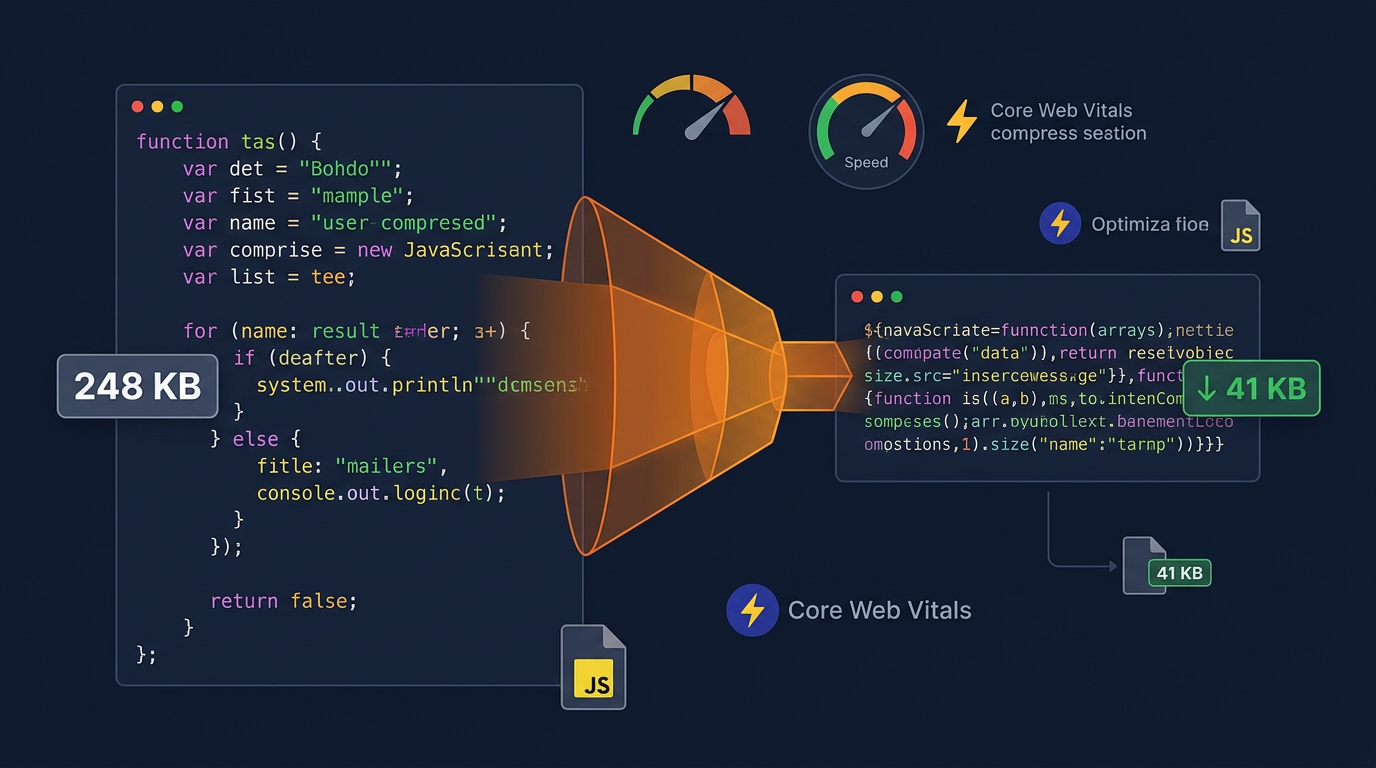
Image compression is the process of reducing the file size of an image while maintaining acceptable visual quality. Compressed images load faster on websites, use less bandwidth, and improve user experience. There are two main types of compression: lossless (no quality loss) and lossy (some quality loss for smaller file sizes).
Our Image Compressor uses lossy compression with adjustable quality settings, allowing you to find the perfect balance between file size and image quality. The tool uses the HTML5 Canvas API to process images entirely in your browser, ensuring your images never leave your device.
Read more about Complete Guide to Image Compression and Optimization for Web
Why Compress Images?
- Faster Website Loading: Smaller images load faster, improving page speed and user experience
- Reduced Bandwidth: Compressed images use less data, especially important for mobile users
- Better SEO: Page speed is a ranking factor for search engines
- Lower Storage Costs: Smaller files require less storage space
- Improved Performance: Faster loading times reduce bounce rates and improve conversions
- Mobile Optimization: Essential for mobile-first web design
Image Formats Explained
JPEG: Best for photographs and images with many colors. Uses lossy compression, so quality decreases as file size decreases. Doesn't support transparency.
PNG: Best for images with transparency, graphics, and images with few colors. Uses lossless compression, so file sizes are typically larger than JPEG. Supports transparency.
WebP: Modern format offering better compression than JPEG and PNG. Supports both lossy and lossless compression, as well as transparency. Limited browser support in older browsers.
GIF: Best for simple animations and images with few colors. Limited to 256 colors. Supports animation and transparency.
Frequently Asked Questions
Find answers to common questions
Compress and resize images online using Canvas API. Reduce file size, adjust dimensions, and optimize images for web. Works offline in your browser.