What Is Claude Code — and Why It's Different from Every AI Coding Tool You've Tried
If you've used GitHub Copilot or Cursor, you know what AI-assisted autocomplete feels like: you type, the AI suggests the next line, you accept or reject. Useful. But Claude Code operates on a different level entirely.
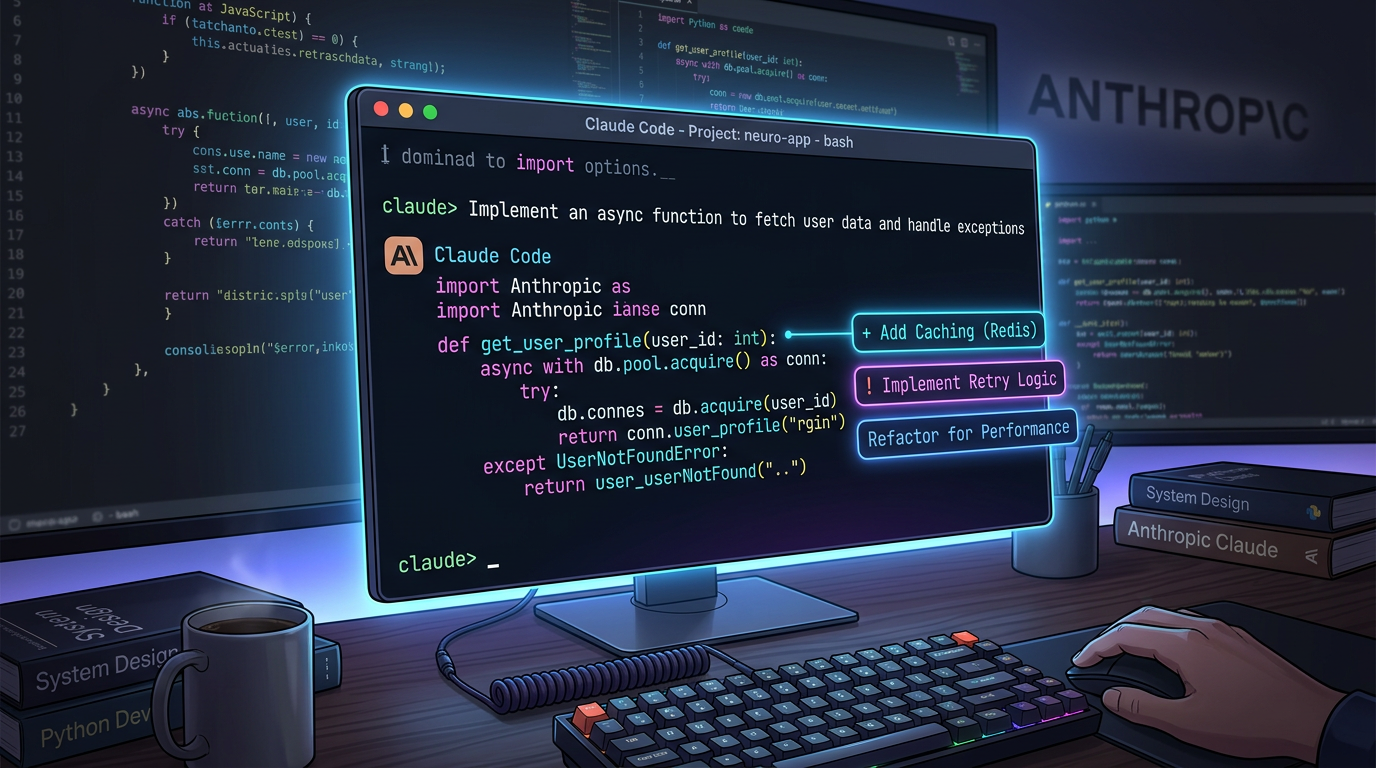
Claude Code is an agentic AI coding assistant built by Anthropic that runs directly in your terminal. Instead of suggesting the next few characters, it reads your entire codebase, reasons about your project's architecture, writes code across multiple files, runs your test suite, executes shell commands, and iterates until the task is complete — all with your approval at each step.
The shift in mental model matters: with autocomplete tools, you're the driver and the AI is the navigation system. With Claude Code, you're the engineering lead and the AI is your most capable senior developer. You describe what needs to happen. It figures out how.
Here's what that looks like in practice. Instead of selecting a function and pressing a shortcut, you open your terminal and type something like:
Refactor the authentication module to use JWT tokens instead of sessions.
Make sure all existing tests pass and add tests for the new token refresh flow.
Claude Code then reads your auth files, understands the existing tests, writes the refactored code, updates the test suite, runs npm test, and reports back. You review the diff and approve.
This is the key distinction between Claude Code and every other AI coding tool:
For senior developers, this feels transformative. For beginners, it requires a mental adjustment: you need to learn how to give clear, scoped instructions rather than just describing vague outcomes. This guide covers exactly that.
Claude Code is available as a CLI tool (the primary interface), as an extension for VS Code and JetBrains IDEs, as a desktop app, and even in CI/CD pipelines via GitHub Actions and GitLab. This guide focuses on the terminal CLI because that's where Claude Code's full power lives — and because every other interface eventually runs the same underlying agent.
Prerequisites: What You Need Before You Install Claude Code
Before running the installer, make sure you have the following in place. Skipping these steps is the most common reason people hit a wall in the first five minutes.
1. A Claude Subscription (Required)
Claude Code requires a paid Anthropic account. The free Claude.ai plan does not support Claude Code. Your options are:
- Claude Pro ($20/month): Works for individual developers. Good starting point. Has usage limits that reset monthly.
- Claude Max ($100/month): Much higher usage limits — better if you plan to use Claude Code heavily throughout the workday.
- Claude Team / Enterprise: For organizations. Includes centralized billing and access controls.
- Claude Console (API): Pay-per-token. Good for power users who want precise cost control. Requires pre-loading credits at
console.anthropic.com. - Amazon Bedrock, Google Vertex AI, Microsoft Foundry: Enterprise cloud provider integrations. See the Claude Code docs for setup instructions.
If you're just starting out, Claude Pro is the right choice. You can always upgrade later.
2. A Terminal
- macOS: Terminal.app or iTerm2. Both work fine.
- Linux: Any terminal emulator.
- Windows: Windows 11 with WSL2 (Windows Subsystem for Linux) is the recommended path. Alternatively, native Windows via PowerShell or CMD is supported, but WSL2 gives you a better experience overall because Claude Code is optimized for Unix-style tooling.
If you've never opened a terminal before, Anthropic's docs include a brief terminal guide at code.claude.com/en/terminal-guide.
3. Git
Git must be installed. Claude Code uses Git for context (understanding file changes), for operations you request (commits, branches, diffs), and as a safety net (always having a clean state to revert to). On macOS, Git is installed automatically when you install Xcode Command Line Tools. On Windows, install Git for Windows before anything else.
git --version
# Should return: git version 2.x.x
4. Node.js (Optional but Recommended)
Claude Code itself doesn't require Node.js — the native installer handles everything. But if you're working on JavaScript or TypeScript projects (and many developers are), having Node.js installed is implied. Claude Code will run npm test, npm run build, and similar commands as part of its workflow.
That's it. No Docker required, no complex setup. You'll be running Claude Code in under 5 minutes once you have these in place.
Step-by-Step Installation: How to Install Claude Code on macOS, Linux, and Windows
Anthropic provides a native installer that handles everything automatically — including future updates. This is strongly preferred over the npm package because native installs auto-update in the background.
macOS and Linux (including WSL2)
Open your terminal and run:
curl -fsSL https://claude.ai/install.sh | bashThe installer will download the latest Claude Code binary, verify its signature, and add it to your PATH. The entire process takes under a minute on a decent internet connection. Once complete, verify the installation:
claude --version
# Returns: Claude Code 1.x.x
macOS via Homebrew
If you prefer managing software through Homebrew:
brew install --cask claude-code Note: Homebrew installations don't auto-update. Run brew upgrade claude-code periodically to get new features and security fixes. There's also a claude-code@latest cask that tracks the newest releases as soon as they ship.
Windows (PowerShell)
irm https://claude.ai/install.ps1 | iex If you see "The token '&&' is not a valid statement separator", you're in PowerShell and this command is the correct one. Your prompt starts with PS C:\ when you're in PowerShell.
Windows (CMD)
curl -fsSL https://claude.ai/install.cmd -o install.cmd && install.cmd && del install.cmdWindows via WinGet
winget install Anthropic.ClaudeCode Like Homebrew, WinGet doesn't auto-update. Run winget upgrade Anthropic.ClaudeCode to stay current.
Troubleshooting Common Installation Issues
Permission denied on macOS/Linux: Don't use sudo with the curl installer — it installs to your user directory by default. If you're on a system where your home directory isn't writable, talk to your sysadmin.
PATH not updated: After installation, if claude --version returns "command not found", restart your terminal. The installer modifies your shell configuration file (~/.zshrc, ~/.bashrc, etc.) and the new PATH won't take effect until the shell restarts.
Windows: "execution of scripts is disabled": Run PowerShell as Administrator, then execute: Set-ExecutionPolicy RemoteSigned. Then try the install command again.
Corporate proxy blocking the download: Claude Code supports standard HTTP proxy environment variables. Set HTTPS_PROXY in your shell environment before running the installer.
Authentication and Your First Session: Logging In and Starting Claude Code
With Claude Code installed, authentication takes about 60 seconds. Navigate to your project directory and run:
cd /path/to/your/project
claude
On first launch, Claude Code detects that you're not authenticated and opens a login flow in your browser. Select your account type (Claude.ai subscription or Console API key), authorize the application, and your credentials are stored locally in ~/.claude/. You won't need to log in again unless you explicitly run /login to switch accounts.
The Welcome Screen
After login, you'll see Claude Code's interactive interface — a prompt that looks like a terminal session, but with superpowers. The welcome screen shows your recent conversations, session information, and available updates. Type /help to see all available commands, or simply start typing your first request.
Your First Command: Understanding the Codebase
The best first command is always to let Claude Code orient itself in your project. Don't skip this — it builds the context that makes every subsequent interaction more accurate:
what does this project do? Claude Code reads your files, processes your README, your package.json or Gemfile, your main entry points, and synthesizes a summary. From here, you can go deeper:
what technologies does this project use?
explain the folder structure
where is the main entry point?
what are the known issues or TODOs in the codebase?
This exploration phase isn't just orientation — it gives Claude Code the context it needs to make accurate changes. A well-oriented agent makes better decisions than one that dives straight into editing files without understanding the surrounding architecture.
Making Your First Code Change
Once Claude Code understands your project, try a simple task:
add a hello world function to the main fileClaude Code will identify the appropriate file, show you the proposed changes (a diff), and ask for your approval before making any edit. This approval gate is fundamental to Claude Code's design — it always asks before modifying files. You can:
- Accept individual changes one by one
- Enable "Accept all" mode to approve everything for the current session
- Reject a change and explain what you want differently
After accepting, Claude Code confirms the edit and waits for your next instruction. That's the basic loop — and it scales from simple single-line changes to complex multi-file refactors.
CLAUDE.md: The Most Important File You'll Create for Claude Code
If there's one thing that separates developers who get marginal results from Claude Code versus those who get extraordinary results, it's CLAUDE.md. This file is Claude Code's project memory — a persistent instruction set that's read at the start of every session.
Without CLAUDE.md, you repeat yourself in every session. Claude Code doesn't remember that you use TypeScript strict mode, that your test command is npm run test:watch, or that all API responses must follow a specific format. With CLAUDE.md, all of that context is always present.
Creating CLAUDE.md
The easiest way to create your first CLAUDE.md is to let Claude Code generate a draft based on your project:
/init This command analyzes your repository and creates a CLAUDE.md at the project root with sensible defaults. You then edit it to add your specific conventions and preferences.
What to Put in CLAUDE.md
A strong CLAUDE.md typically includes:
# Project: My SaaS App

## Tech Stack
- Backend: Node.js 20 + Express + TypeScript (strict mode)
- Frontend: React 18 + Vite + Tailwind CSS
- Database: PostgreSQL via Prisma ORM
- Testing: Vitest for unit tests, Playwright for E2E

## Commands
- Install: `npm install`
- Dev server: `npm run dev`
- Tests: `npm run test`
- Build: `npm run build`
- Lint: `npm run lint`

## Coding Conventions
- Use async/await, never callbacks or raw Promises
- All functions must have TypeScript return types annotated
- Error handling: wrap all async functions with try/catch
- API responses: always use the ApiResponse<T> wrapper type
- No `any` types — use `unknown` and narrow it explicitly

## Architecture
- src/routes/ — Express route handlers (thin layer, no business logic)
- src/services/ — Business logic lives here
- src/models/ — Prisma schema and generated types
- src/utils/ — Pure utility functions with no side effects

## Testing Rules
- Every new function in src/services/ needs a unit test
- Mocking: use Vitest's built-in vi.mock(), not jest.mock()
- Test files must be colocated: UserService.ts → UserService.test.ts

## Security
- Never log request bodies that may contain PII
- All user input must be validated with Zod before use
- API keys must be loaded from environment variables only
This might feel like overkill at first. It isn't. Every line here prevents Claude Code from making a decision you'd have to correct — and those corrections cost tokens, time, and frustration.
CLAUDE.md Files in Subdirectories
You can have multiple CLAUDE.md files in subdirectories. A CLAUDE.md in src/api/ can contain API-specific conventions, while the root CLAUDE.md covers project-wide standards. Claude Code reads all relevant files when working in a given directory.
Keeping CLAUDE.md Updated
Treat CLAUDE.md as living documentation. When you establish a new convention, add it to the file immediately. When a dependency changes (e.g., migrating from Jest to Vitest), update it. Commit CLAUDE.md to your repository — your whole team benefits from it, and so does Claude Code in CI/CD contexts.
The Core Workflow: How to Think About Working with Claude Code
Claude Code works best when you follow a natural progression: explore, plan, implement, verify. This isn't a strict process — it's a mental model that prevents the most common mistakes (asking Claude Code to change things it doesn't understand yet, or approving changes without verifying they work).
Step 1: Explore
Before making changes, let Claude Code build context. Ask it to read the relevant files, explain the current behavior, and identify potential complications:
read the authentication middleware and explain how sessions are currently managedwhat would break if I changed the UserRepository interface to add an optional `deletedAt` field?This step catches 80% of issues before any code is written.
Step 2: Plan
For any non-trivial change, ask Claude Code to plan before it acts. You can trigger explicit planning mode with Shift+Tab or by asking:
before you make any changes, write a step-by-step plan for migrating the session
authentication to JWT. Include which files will be affected and what tests will need updating.
Review the plan. Ask questions. Adjust scope. Starting implementation with a bad plan wastes much more time than investing two minutes in alignment upfront.
Step 3: Implement
With context and a plan established, implementation is where Claude Code shines. Give it clear, specific instructions and let it work. Reference specific files using the @ symbol:
implement the JWT authentication plan we just discussed.
start with @src/middleware/auth.ts and @src/services/AuthService.ts
Review each diff before approving. Don't auto-approve everything during a complex refactor — catch issues at the diff stage, not after running tests.
Step 4: Verify
Always instruct Claude Code to run your test suite after changes:
run the tests and fix any failures before considering this done Claude Code will execute npm test (or whatever command your CLAUDE.md specifies), read the output, diagnose failures, and fix them — iterating until the suite passes or it needs your input on an ambiguous failure.
The Git Workflow
Claude Code integrates naturally with Git. You can ask it to:
what files have I changed?
commit my changes with a descriptive message
create a new branch called feature/jwt-auth
show me the diff between main and this branch
help me write a good commit message for these changes
Always start a significant task from a clean Git state (no uncommitted changes). This gives you a reliable checkpoint to revert to if something goes wrong — and with Claude Code doing multi-file edits, you want that safety net.
Essential Claude Code Commands and Keyboard Shortcuts
Knowing the right commands turns Claude Code from capable to genuinely fast. Here are the ones that matter most for daily use.
CLI Commands (Before Starting a Session)
# Start an interactive session in current directory
claude

# Run a one-off task without entering interactive mode
claude "fix the TypeScript errors in src/api/"

# Run a query and exit immediately (great for scripts)
claude -p "explain what this function does" < utils/parser.ts

# Continue the most recent conversation in current directory
claude -c

# Resume a specific previous conversation
claude -r
Slash Commands (Inside a Session)
Type / at any point to see all available commands. The most important ones:
- /clear — Clears all conversation history and starts fresh. Use this between unrelated tasks. Context bloat is real: a session that started on authentication and drifts into database migrations accumulates noise that degrades response quality. When in doubt, clear.
- /compact — Compresses the current conversation history to save context space without losing the thread. Use this when you're deep into a complex task and running low on context, but don't want to start over.
- /help — Shows all available commands with descriptions.
- /model — Switches the underlying model. Defaults to Claude Sonnet (best balance of speed and capability). Switch to Claude Opus for genuinely complex reasoning tasks — large-scale refactors, architectural decisions, or debugging obscure multi-system issues.
- /login — Initiates a new login flow. Use when switching between accounts (personal Pro vs. company Console account).
- /resume — Lists recent conversations and lets you resume any of them with full context restored.
- /init — Generates a
CLAUDE.mdfile for the current project based on what Claude Code observes.
Keyboard Shortcuts
- ? — Shows all keyboard shortcuts at any time
- Tab — Autocompletes commands and file references
- ↑ / ↓ — Navigate command history
- Shift+Tab — Toggles Plan Mode (Claude researches and plans before acting)
- Ctrl+C — Interrupts the current operation (Claude Code stops what it's doing and waits for your next instruction)
- Ctrl+D — Exits the session
Referencing Files with @
You can reference specific files in your instructions using the @ symbol:
refactor @src/services/UserService.ts to use the repository pattern like @src/services/ProductService.tsClaude Code reads the referenced files directly, ensuring its changes are based on the current actual content rather than its previous understanding of them.
How to Write Effective Prompts for Claude Code: The Difference Between Good and Great Results
The quality of Claude Code's output is directly proportional to the quality of your instructions. This isn't the tool's limitation — it's the nature of autonomous agents. The more precisely you specify what you want, the less correction you'll need afterward.
Be Specific About the Goal, Not Just the Action
Weak prompt:
fix the login bugStrong prompt:
fix the login bug where users who enter an incorrect password are redirected to a blank
page instead of seeing the "invalid credentials" error message. The issue is in the
error handling in @src/pages/Login.tsx
The difference isn't just specificity — it's that the second prompt tells Claude Code which file to look at, what the symptom is, and what the expected behavior should be. This eliminates the exploratory phase where Claude Code might investigate the wrong component first.
Scope Your Tasks Deliberately
Claude Code can handle large tasks, but accuracy decreases as scope increases. Break large changes into sequential steps:
Step 1: Read the entire authentication module and list every place sessions are created or validated. Don't make any changes yet.

(review the list, then:)

Step 2: Replace session creation in @src/services/AuthService.ts with JWT generation. Keep the existing interface unchanged.

(review and approve changes, then:)

Step 3: Update the session validation middleware at @src/middleware/auth.ts to validate JWT tokens instead of looking up sessions.
This staged approach gives you review checkpoints and makes it easy to identify exactly where something went wrong if it does.
Give Constraints, Not Just Goals
Telling Claude Code what not to do is as valuable as telling it what to do:
add input validation to the registration form. Don't change the form's visual design
or add any new dependencies — use the Zod instance already imported in the file.
Reference Examples
If your codebase has established patterns you want Claude Code to follow, point to them explicitly:
add a new endpoint for deleting user accounts. Follow the same pattern used in
@src/routes/users/update.ts — same error handling, same response format.
When to Start Over
If Claude Code misunderstands your intent after two correction attempts, don't keep correcting in the same session. Run /clear, start fresh, and write a more precise prompt from scratch. Persisting in a confused session compounds errors rather than resolving them. The context you lose is worth less than the clean slate you gain.
Advanced Features: MCP, IDE Integration, GitHub Actions, and the Desktop App
Once you're comfortable with the basics, Claude Code offers a set of advanced capabilities that extend what the agent can do and how you interact with it.
Model Context Protocol (MCP)
MCP is Claude Code's plugin system. It allows Claude Code to connect to external services — databases, APIs, documentation systems, internal tools — and use them as part of its workflow. For example, with an MCP connector for your PostgreSQL database, you can ask:
look at the actual production data for the orders table and identify any rows with
NULL values in the customer_id column. Then write a migration to add a NOT NULL constraint.
Instead of working from schema files alone, Claude Code queries your actual database and reasons from real data. MCP connectors are configured in ~/.claude/mcp.json (global) or .claude/mcp.json (project-specific).
Popular MCP integrations as of 2026 include connectors for PostgreSQL, MySQL, GitHub, Jira, Notion, Slack, and custom REST APIs.
VS Code and JetBrains IDE Integration
If you prefer working inside an IDE rather than switching to a terminal, Claude Code has official extensions for VS Code and JetBrains products (IntelliJ, WebStorm, PyCharm, etc.). Install from each IDE's extension marketplace.
The IDE extension gives you the same Claude Code agent running in a sidebar panel. You can reference the currently open file with @current, or selected code blocks are automatically passed as context. The underlying agent is identical — same CLAUDE.md, same approval workflow, same slash commands.
GitHub Actions and GitLab CI/CD
Claude Code can run as part of your CI/CD pipeline. Common use cases:
- Automatically reviewing pull requests and leaving comments
- Running Claude Code to fix lint errors before a PR can merge
- Generating release notes from commit history
- Automatically writing or updating API documentation when endpoints change
This is configured using Claude Code's --non-interactive flag and environment variable authentication (your API key as ANTHROPIC_API_KEY or equivalent). See the Claude Code docs for the official GitHub Actions workflow file.
The Claude Code Desktop App
For developers who want a dedicated application rather than a terminal window or IDE panel, the Claude Code desktop app provides a standalone interface. It includes the same features as the CLI with a more polished UI — file tree navigation, session history sidebar, and visual diff review. Available for macOS and Windows.
Claude Code on claude.ai/code (Web)
You can also use Claude Code directly in your browser at claude.ai/code. This is useful for quick tasks when you're not at your development machine, or for onboarding team members who haven't set up the CLI yet. The web interface has some limitations compared to the CLI (primarily around local file access), but works well for reviewing code and generating implementations.
Common Mistakes Beginners Make with Claude Code (And How to Avoid Them)
After spending time with Claude Code, the same patterns of avoidable errors come up repeatedly. Here's what to watch for and how to sidestep each one.
Mistake 1: Starting Without a Clean Git State
Running Claude Code with uncommitted changes in your working directory makes it impossible to cleanly revert if something goes wrong. Before any significant task:
git status     # verify clean state
git stash      # stash uncommitted work if needed
git checkout -b feature/my-task  # create a branch
This takes 10 seconds and saves enormous frustration.
Mistake 2: "Kitchen Sink" Sessions
Starting a session to fix a bug, then asking it to also add a feature, then asking it to refactor an unrelated module — all in the same conversation — leads to context pollution. The session accumulates assumptions, intermediate states, and constraints that interfere with each other. Use /clear between unrelated tasks. One session = one coherent goal.
Mistake 3: Skipping the Review Step
Claude Code shows you a diff before making changes. Read it. Don't just press Enter because the description sounds right. The diff is where you catch:
- Changes to files you didn't expect to be touched
- Logic that looks superficially correct but misses edge cases
- Deleted code that was actually important
Claude Code is highly capable, but it's not infallible. Your review is the quality gate.
Mistake 4: Ignoring Context Limits
Very long sessions degrade in quality. Once a session has thousands of tokens of history, Claude Code's responses get slower and less precise. Signs of context bloat: responses that rehash what you already agreed on, or that seem to forget recent decisions. Fix: /compact to compress the history, or /clear to start fresh.
Mistake 5: Using Vague Prompts for Sensitive Code
For authentication, billing, data validation, or anything security-critical, vague prompts are dangerous. "Improve the security of the auth module" could mean a hundred different things. Be extremely specific about what you want and what you don't want changed. Then audit the diff line by line.
Mistake 6: Not Having CLAUDE.md Set Up
If you skip CLAUDE.md, you're spending tokens every session re-establishing context that should be persistent. Ten minutes setting up a good CLAUDE.md pays dividends across every session after.
Mistake 7: Sending Sensitive Data to Claude Code
Production database dumps, real API keys, PII-containing files — don't feed these to Claude Code. While Anthropic's privacy policies apply, the safest approach is to work with anonymized or sanitized data for sensitive tasks. If you need Claude Code to work with your actual database schema, use it for the schema only, not the data.
Real-World Workflows: What Claude Code Actually Excels At
Understanding where Claude Code delivers disproportionate value helps you prioritize where to use it.
Large Refactors Across Many Files
Renaming a widely-used interface, migrating from one library to another, converting a codebase from JavaScript to TypeScript — tasks that would take a developer hours of careful search-and-replace and cross-reference checking. Claude Code handles these in minutes with a single instruction:
migrate all usages of the deprecated `getUserById(id: number)` function to the new
`userRepository.findById(id: string)` signature. The ID is now a UUID string.
Update all callers and update the tests. Don't change the UserRepository implementation itself.
Writing Tests for Existing Code
This is one of Claude Code's highest-value applications. Give it a service file and ask it to write comprehensive tests:
write comprehensive unit tests for @src/services/PaymentService.ts.
Cover all public methods including edge cases: failed payments, insufficient funds,
duplicate transaction attempts, and network timeouts. Use the existing mocking patterns
from @src/services/UserService.test.ts
Debugging Complex Issues
Pass Claude Code a stack trace and the relevant files:
here's an error that only appears in production:

TypeError: Cannot read properties of undefined (reading 'userId')
    at OrderController.createOrder (OrderController.ts:89)
    at Layer.handle [as handle_request] (router/layer.js:95)

Look at @src/controllers/OrderController.ts and the middleware stack and identify
what could be undefined in that context.
Generating Documentation
Writing JSDoc, README updates, or API documentation for an existing codebase is tedious for humans and fast for Claude Code:
add JSDoc comments to all exported functions in @src/utils/. Include @param, @returns,
and @throws annotations. Match the style in @src/services/AuthService.ts
Code Reviews
Before submitting a PR, ask Claude Code to review your own changes:
review my changes in the current branch compared to main. Look for: security issues,
performance problems, missing error handling, and inconsistencies with our coding
conventions in CLAUDE.md. Be specific about what to fix, not just what's wrong.
Frequently Asked Questions About Claude Code
Do I need to be a senior developer to use Claude Code?
No, but you need to be able to read code and evaluate whether Claude Code's output is correct. If you can't review the diffs Claude Code shows you, you can't use it safely. Complete beginners can use Claude Code to learn — ask it to explain what it's doing and why — but you should understand the code before approving changes to a production codebase.
How is Claude Code different from Claude.ai chat?
Claude.ai chat is a conversational interface — you can paste code, ask questions, and get suggestions. Claude Code is an autonomous agent that operates directly in your development environment. It reads and writes files, runs shell commands, executes tests, and takes multi-step actions. You don't paste code — it reads your project directly.
Does Claude Code send my code to Anthropic's servers?
Yes. When Claude Code reads your files to process a request, that content is sent to Anthropic's API servers. This is functionally the same as using Claude.ai chat with code pasted in. Don't use Claude Code with files containing real credentials, production PII, or other sensitive data you wouldn't send to a third-party API.
Can Claude Code work without internet access?
No. Claude Code requires a connection to Anthropic's servers (or your configured cloud provider) for every interaction. It's not a local model.
What's the difference between Claude Sonnet and Claude Opus in Claude Code?
Sonnet is faster and cheaper — appropriate for the vast majority of tasks: writing code, running tests, answering questions about the codebase, refactoring. Opus is slower and more expensive, but handles more complex multi-step reasoning better. Switch to Opus (via /model) for large architectural decisions, cross-cutting refactors spanning many files, or when Sonnet seems to be missing important context.
What happens if Claude Code breaks something?
This is why you start from a clean Git state. If Claude Code makes changes that break your build or tests, you can:
- Ask Claude Code to fix the breakage: "the tests are failing, fix them"
- Revert all changes:
git checkout .to discard uncommitted edits - Revert to before the session:
git reset --hard HEADif you committed during the session
Claude Code never makes changes without showing you a diff first. If you review carefully and only approve correct changes, breakage is rare.
Can I use Claude Code with any programming language?
Yes. Claude Code works with any language — Python, Go, Rust, Java, PHP, Ruby, C++, and more. Its effectiveness in a given language depends on how well that language is represented in its training data. JavaScript/TypeScript, Python, and Go tend to get the best results.
How much does Claude Code cost to use?
With a Claude Pro subscription ($20/month), you're paying for access to Claude itself — Claude Code is included. With heavy use (running Claude Code for multiple hours a day), you may hit Pro's usage limits and need to upgrade to Max ($100/month) or switch to Console API billing (pay per token, which can be more expensive or cheaper depending on usage patterns).
Is there a way to use Claude Code without a subscription?
Not directly. Claude Code requires either a Claude subscription (Pro, Max, Team, Enterprise) or a Claude Console account with API credits. There's no free tier for Claude Code. Claude.ai's free plan does not include Claude Code access.
Can multiple developers on a team use the same Claude Code setup?
Each developer needs their own account. However, you can share CLAUDE.md across the team by committing it to your repository — this is actually the recommended approach, since it means everyone's Claude Code sessions use consistent conventions and context.
Conclusion: How to Actually Get Started with Claude Code Today
Claude Code represents a genuine shift in how software gets written — not because it replaces developers, but because it eliminates the low-leverage parts of development: searching for where something is defined, writing boilerplate, manually tracing a bug through five files, writing the same test structure for the fifteenth time.
The developers who get the most out of Claude Code treat it as a capable colleague they're directing, not as an autocomplete engine. They're specific about goals and constraints, they review output critically, and they use CLAUDE.md to eliminate repetitive context-setting.
Here's your starting sequence:
curl -fsSL https://claude.ai/install.sh | bashclaude, log in, then run /init to generate your CLAUDE.mdThat first successful task — watching Claude Code find the right file, make the right change, run the tests, and confirm everything passes — resets your intuition for what's possible. From there, the learning curve is about prompt craft and knowing when to use which capability.
The tooling around AI coding agents is evolving rapidly. But the fundamental skill — giving precise, scoped, context-rich instructions to a capable autonomous system — will remain valuable regardless of which specific tool you use. Start building that skill now.